
 Mukesh@gmail.com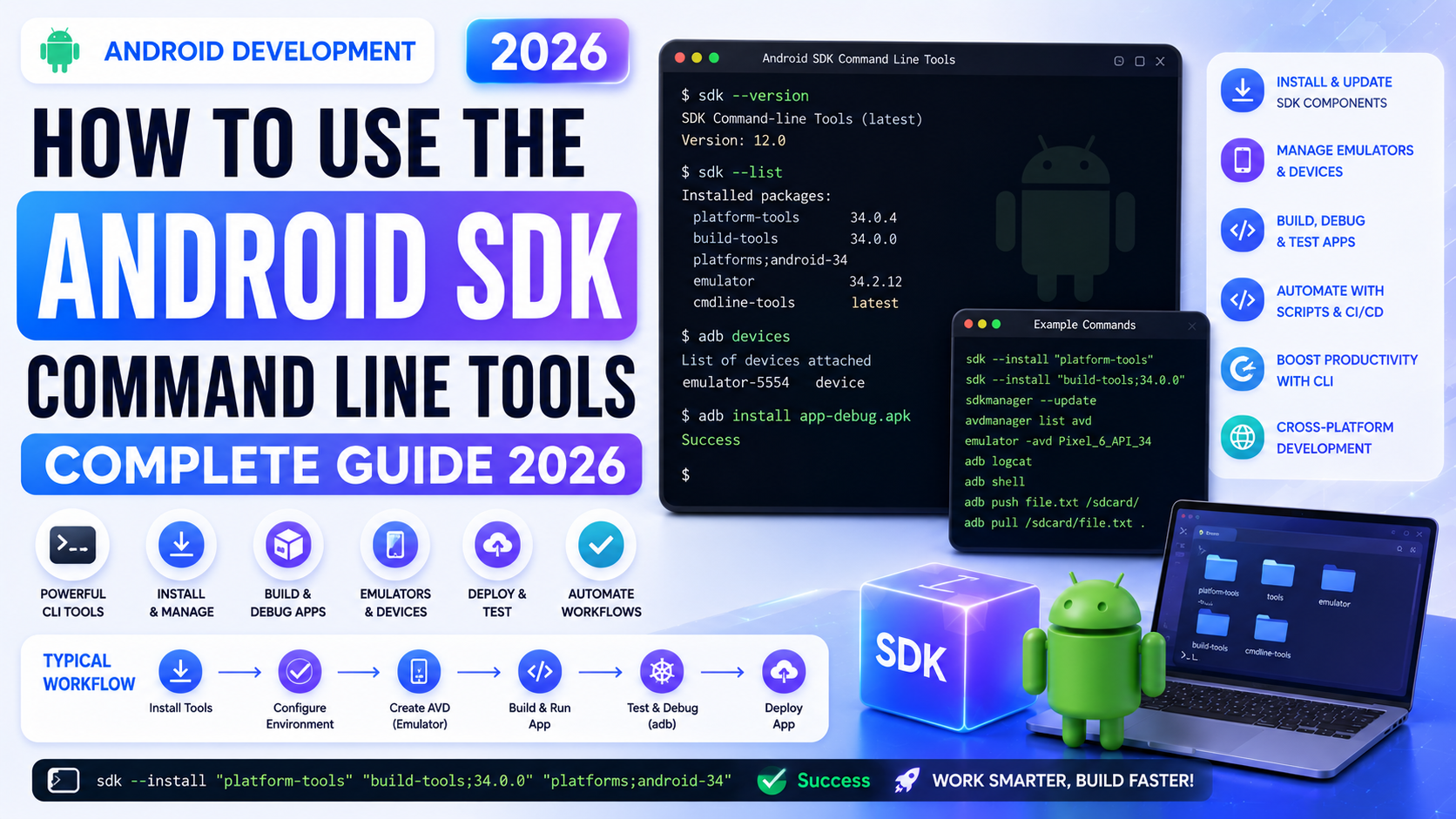
Introduction
Most Android developers start with Android Studio and never look beyond the graphical interface. That works fine for a while. But sooner or later — especially when you’re setting up a CI/CD pipeline, working on a remote server, or just trying to automate something — you’ll need to work with the Android SDK Command Line Tools directly.
These tools are not complicated, but they’re also not well-explained in most places. A lot of tutorials assume you already know what adb or sdkmanager does, or they dump a wall of commands without explaining why you’re running them.
This guide takes a different approach. We’ll start from the very beginning — what the Android SDK Command Line Tools actually are, why they exist, how to install them, and then go through each important tool with practical examples that you’d actually use in real Android development. Whether you’re a beginner or someone who’s been avoiding the terminal for too long, this guide is for you.
What Are the Android SDK Command Line Tools?
Before we get into installation, it helps to understand what we’re actually dealing with.
The Android SDK (Software Development Kit) is a collection of software components that developers need to build Android apps. Most people interact with it through Android Studio, which wraps everything in a nice GUI. But underneath that GUI, everything runs through command-line executables.
The Android SDK Command Line Tools are the standalone versions of those executables. They let you do everything — download SDK packages, manage Android emulators, connect to physical devices, run builds — entirely from your terminal or command prompt, without needing Android Studio open at all.
In 2026, these tools are more important than ever because:
- Automated build servers (like GitHub Actions or Jenkins) don’t have a GUI
- Docker-based Android build environments need headless setup
- Some tasks, like batch-installing APKs or automating device testing, are only practical from the command line
If you want to call yourself a serious Android developer, getting comfortable with Android SDK Command Line Tools is not optional — it’s just something you pick up eventually.
Where to Download the Android SDK Command Line Tools
Google provides the Android SDK Command Line Tools as a standalone package, separate from Android Studio. You don’t need to install Android Studio to use them.
Here’s where to get them:
Go to the official Android developer page at https://developer.android.com/studio#command-line-tools-only. Scroll down to the “Command line tools only” section. You’ll see downloads for Windows, macOS, and Linux.
Download the ZIP file for your operating system. The file is relatively small — usually under 200 MB — because it’s just the base tooling. The actual SDK packages (platform tools, build tools, etc.) get downloaded separately afterward.
Setting Up the Directory Structure
This part trips up a lot of people, so pay close attention.
When you extract the downloaded ZIP, you’ll get a folder called cmdline-tools. The Android SDK Command Line Tools expect a specific directory structure to work properly. You need to place the extracted folder inside a path like this:
android-sdk/
  cmdline-tools/
    latest/
      bin/
      lib/
The latest subfolder is important. If you just drop the extracted files directly into cmdline-tools/, the tools will complain about the wrong directory structure. Create the latest folder manually and move everything inside it.
Setting Environment Variables
After extraction, you need to tell your operating system where the Android SDK Command Line Tools are located. This is done through environment variables.
On Windows
Open System Properties → Advanced → Environment Variables.
Add a new variable called ANDROID_HOME and set its value to the path of your main SDK folder (e.g., C:\Users\YourName\android-sdk).
Then add the following to your PATH variable:
%ANDROID_HOME%\cmdline-tools\latest\bin
%ANDROID_HOME%\platform-tools
On macOS and Linux
Open your shell configuration file — that’s ~/.bashrc for Bash or ~/.zshrc for Zsh — and add these lines:
export ANDROID_HOME=$HOME/android-sdk
export PATH=$PATH:$ANDROID_HOME/cmdline-tools/latest/bin
export PATH=$PATH:$ANDROID_HOME/platform-tools
After saving the file, run source ~/.bashrc (or source ~/.zshrc) to apply the changes immediately without restarting your terminal.
To verify the setup, run:
sdkmanager --version
If you see a version number printed, the Android SDK Command Line Tools are correctly installed and your PATH is configured.
sdkmanager – Managing Your SDK Packages
sdkmanager is the first tool you’ll use after installation. It’s responsible for downloading and managing all the different Android SDK components — platform tools, build tools, system images, and more.
Listing Available Packages
To see everything available for download:
sdkmanager --list
This will output a long list of package names. It includes installed packages (shown at the top) and available-but-not-installed packages below.
Installing Essential Packages
Here are the most commonly needed packages when setting up Android development from scratch:
sdkmanager "platform-tools"
sdkmanager "platforms;android-34"
sdkmanager "build-tools;34.0.0"
sdkmanager "system-images;android-34;google_apis;x86_64"
Let’s break these down quickly:
platform-tools— installs ADB and fastboot, which you need to communicate with real devicesplatforms;android-34— the Android 14 SDK platform (the number corresponds to the API level)build-tools;34.0.0— compilation tools likeaapt,d8, andzipalignsystem-images— the OS image used when running an Android emulator
You can accept the license agreements in bulk using:
sdkmanager --licenses
It will prompt you to type y for each license. There are usually around 6–7 to accept.
Updating All Installed Packages
sdkmanager --update
This checks for newer versions of everything you’ve already installed and updates them. Worth running periodically, especially before starting a new project.
avdmanager – Creating and Managing Android Emulators
Once you have a system image installed, avdmanager lets you create Android Virtual Devices (AVDs) — the emulators you use for testing.
Creating a New Emulator
Here’s a basic command to create an emulator:
avdmanager create avd \
  --name "Pixel7_API34" \
  --package "system-images;android-34;google_apis;x86_64" \
  --device "pixel_7"
Breaking this down:
--nameis whatever you want to call this emulator (no spaces)--packagemust match exactly what you installed withsdkmanager--deviceis the hardware profile to emulate (you can list available devices withavdmanager list device)
Listing Existing AVDs
avdmanager list avd
This shows all the emulators you’ve created, along with their name, target, and ABI (processor architecture).
Deleting an AVD
avdmanager delete avd --name "Pixel7_API34"
Emulators take up significant disk space (often 2–4 GB each), so it’s good practice to delete ones you’re no longer using.
Starting an Emulator from the Command Line
The emulator binary (located in $ANDROID_HOME/emulator/) is what actually launches the virtual device:
emulator -avd Pixel7_API34
Add -no-window if you want to run it headlessly (useful for CI environments):
emulator -avd Pixel7_API34 -no-window &
The & runs it in the background so your terminal stays usable.
ADB – The Most Used Android SDK Command Line Tool
ADB stands for Android Debug Bridge. It’s probably the single most useful tool in the Android SDK Command Line Tools collection, and most Android developers use it almost daily.
ADB lets you communicate with both physical Android devices and emulators. You can install apps, transfer files, view logs, run shell commands on the device, and more.
Checking Connected Devices
adb devices
This lists all currently connected devices and emulators. The output looks something like:
List of devices attached
emulator-5554   device
R3CT105G4NH     device
The first entry is an emulator, the second is a physical device (identified by its serial number).
Installing an APK
adb install myapp.apk
If you have multiple devices connected, you need to specify which one:
adb -s emulator-5554 install myapp.apk
Uninstalling an App
adb uninstall com.example.myapp
You need the package name here, not the APK filename.
Pushing and Pulling Files
Copy a file from your computer to the device:
adb push localfile.txt /sdcard/Documents/localfile.txt
Copy a file from the device to your computer:
adb pull /sdcard/Documents/localfile.txt ./downloads/
This is incredibly useful for getting log files, databases, or test data off a device quickly.
Viewing Logcat Output
Logcat is Android’s logging system. Everything your app (and the system) writes to the log appears here:
adb logcat
That outputs everything, which can be overwhelming. Filter by your app’s tag or package:
adb logcat -s "MyAppTag"
Or filter by log level (E = Error only):
adb logcat *:E
Running a Shell on the Device
adb shell
This drops you into a Linux shell running directly on the Android device or emulator. From here you can navigate the file system, run commands, check running processes, and more.
A common use: check what’s installed
adb shell pm list packages
Or list files in a specific directory:
adb shell ls /sdcard/
Using ADB for App Debugging and Testing
Beyond file management, ADB has several commands that come up regularly during actual app development and testing.
Clearing App Data
When testing, you often need to reset an app to its fresh-install state:
adb shell pm clear com.example.myapp
This deletes all app data, cache, and settings — equivalent to going to Settings → Apps → Clear Data on the device.
Taking a Screenshot
adb shell screencap /sdcard/screen.png
adb pull /sdcard/screen.png ./
Two commands: first captures the screen on the device, second pulls it to your computer. Quick and useful during UI testing.
Recording the Screen
adb shell screenrecord /sdcard/demo.mp4
Press Ctrl+C to stop recording, then pull the file with adb pull.
Simulating Key Events
You can simulate button presses programmatically:
adb shell input keyevent 26   # Power button
adb shell input keyevent 3    # Home button
adb shell input keyevent 4    # Back button
Or send text input to a focused field:
adb shell input text "Hello2026"
fastboot – Flashing and Low-Level Device Access
fastboot is another tool included with platform-tools. It operates at a lower level than ADB — it communicates with the device’s bootloader rather than the running Android OS.
Most everyday developers don’t need fastboot often, but it’s essential for:
- Flashing custom ROM images
- Unlocking bootloaders on developer devices
- Recovering from a bricked device
To use fastboot, the device needs to be in fastboot mode (usually: hold Power + Volume Down on boot, varies by device).
fastboot devices         # lists connected devices in fastboot mode
fastboot reboot          # reboots the device normally
fastboot oem unlock      # unlocks bootloader (erases all data!)
Use fastboot commands carefully. Unlike ADB commands, some of them are irreversible.
Integrating Android SDK Command Line Tools in CI/CD Pipelines
One of the most valuable real-world applications of the Android SDK Command Line Tools is in automated build and test pipelines.
Here’s a simplified example of what a GitHub Actions workflow might look like to set up the Android environment without Android Studio:
- name: Set up Android SDK
  run: |
    mkdir -p $HOME/android-sdk/cmdline-tools
    wget https://dl.google.com/android/repository/commandlinetools-linux-latest.zip
    unzip commandlinetools-linux-latest.zip -d $HOME/android-sdk/cmdline-tools/
    mv $HOME/android-sdk/cmdline-tools/cmdline-tools $HOME/android-sdk/cmdline-tools/latest
    echo "ANDROID_HOME=$HOME/android-sdk" >> $GITHUB_ENV
    echo "$HOME/android-sdk/cmdline-tools/latest/bin" >> $GITHUB_PATH

- name: Install SDK packages
  run: |
    yes | sdkmanager --licenses
    sdkmanager "platform-tools" "platforms;android-34" "build-tools;34.0.0"
This kind of setup makes your build environment reproducible and completely automated — no GUI needed, no manual steps. That’s the real power of the Android SDK Command Line Tools in a professional workflow.
Common Errors and How to Fix Them
Working with Android SDK Command Line Tools isn’t always smooth, especially the first time. Here are a few errors that come up often.
“sdkmanager: command not found” — Your PATH isn’t set correctly. Double-check that the cmdline-tools/latest/bin path is in your PATH variable and that you’ve reloaded your shell config.
“Failed to find target with hash string ‘android-34′” — You haven’t installed that platform yet. Run sdkmanager "platforms;android-34" first.
“No connected devices” in ADB — On physical devices, make sure USB Debugging is enabled in Developer Options. Also try adb kill-server followed by adb start-server to reset the ADB daemon.
“INSTALL_FAILED_UPDATE_INCOMPATIBLE” when using adb install — The app is already installed with a different signing key. Uninstall it first with adb uninstall com.your.package.
Emulator won’t start — Make sure hardware acceleration is enabled. On Windows, enable Hyper-V or HAXM. On Linux, install KVM. Without acceleration, Android emulators are almost unusably slow.
Tips for Working Efficiently with Android SDK Command Line Tools
A few habits that’ll save you time once you’re using these tools regularly:
Create shell aliases for commands you run often. For example, adding alias alog="adb logcat *:E" to your .bashrc means you can run filtered logs with a short command.
Keep your SDK packages updated, but don’t update in the middle of a project without testing first. Breaking changes in build tools have happened before and can cause unexpected build failures.
When working with multiple devices simultaneously — say, running tests on three different emulators at once — always use the -s flag with ADB to specify the target device explicitly. Forgetting this causes commands to run on the wrong device.
Learn adb shell commands gradually. The Android shell is standard Linux, so most basic Bash knowledge transfers directly. Start with ls, cat, ps, and pm and expand from there.
Final Conclusion
The Android SDK Command Line Tools are one of those things that feel intimidating at first but become second nature surprisingly quickly. Once you understand the three or four core tools — sdkmanager for package management, avdmanager for emulators, and adb for device communication — you’ll find yourself reaching for the terminal more and more, even when Android Studio is right there.
In 2026, knowing your way around the Android SDK Command Line Tools is a genuine professional skill. It makes you faster, it makes your development environment portable, and it opens the door to automated testing and continuous integration setups that would be impossible through a GUI alone.
Start simple: install the tools, run adb devices, and connect to an emulator. Build from there. Within a week of regular use, most of these commands will feel completely natural.
For official reference, keep the Android developer documentation and the ADB command reference bookmarked — they’re well-maintained and updated regularly.






