Mukesh@gmail.com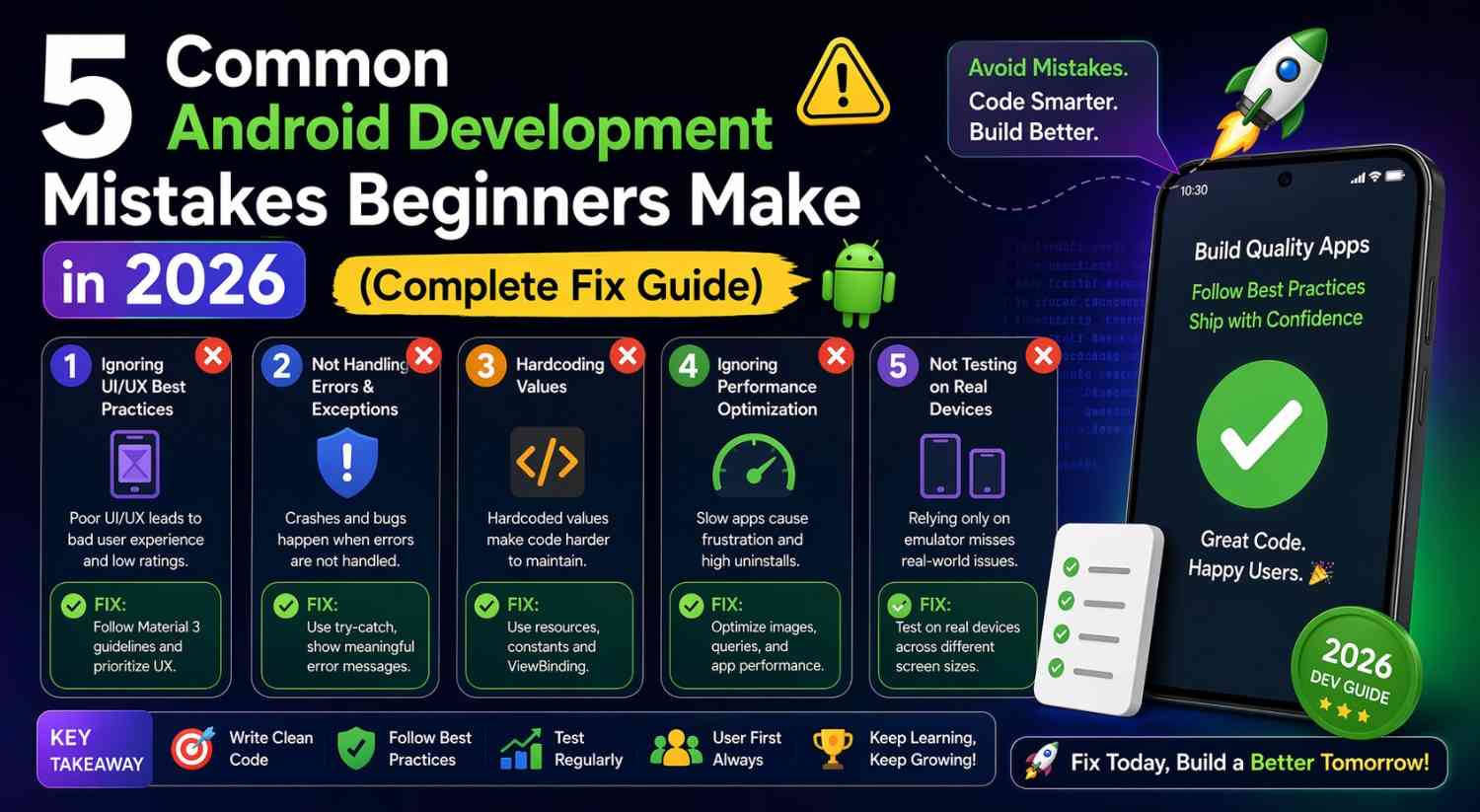
Building your first Android app feels exciting — until something breaks and you don’t know where to even start looking. The frustrating part? Most common Android development mistakes aren’t random. They’re the same five or six issues that trip up nearly every beginner in their first few weeks of learning.
This article covers those mistakes honestly, explains what causes them, and walks you through exactly how to fix each one. If you’re stuck on one right now, this is the right place to be. And if you haven’t hit them yet — you will. Knowing what’s coming makes them far less frustrating when they arrive.
Mistake 1: Putting All Your Code in MainActivity
This is probably the most universal of all common Android development mistakes. You open MainActivity.kt, things work, so you keep adding code there. Network calls, database logic, business rules, UI updates — everything ends up in one file. Before long, MainActivity has 400+ lines doing everything at once.
Why This Happens
The default project template puts you directly inside MainActivity. Many beginner tutorials don’t enforce any kind of code separation. When you’re just trying to make something work, the easiest path is adding the next thing right where the last thing was.
Why It’s a Problem
When everything depends on everything else, changing one thing breaks three others. Testing becomes nearly impossible because no piece of logic can be isolated. Adding a new feature means reading through hundreds of lines before writing a single new one.
How to Fix It
Move your logic into a ViewModel. Your MainActivity or main Composable should only do two things: display state, and forward user actions to the ViewModel. Anything that decides what to display — fetching data, filtering lists, validating input — belongs in the ViewModel.
kotlin
// Wrong — direct database call inside UI
@Composable
fun NoteListScreen() {
    val notes = database.getAllNotes()
}

// Right — ViewModel handles the logic
@Composable
fun NoteListScreen(viewModel: NoteViewModel = hiltViewModel()) {
    val notes by viewModel.notes.collectAsState()
}
Even on your very first app, starting with this separation makes every step after it noticeably easier.
Mistake 2: Not Understanding State (And Why the UI Won’t Update)
“I changed the variable but the screen didn’t update.” This is one of the most searched questions in Android beginner communities — and it almost always traces back to the same misunderstanding about Compose state.
This falls squarely in the category of common Android development mistakes that feel like a bug but are actually a concept gap.Common Android Development Mistakes
Why This Happens
Developers coming from other languages expect that changing a variable automatically updates the UI. In Jetpack Compose, that’s not how it works. Compose only re-renders when it observes a change in a proper Compose state object — like mutableStateOf or a collected StateFlow.
kotlin
// Wrong — Compose doesn't observe a plain variable
var message = "Hello"
Button(onClick = { message = "Goodbye" }) { Text("Change") }
Text(text = message) // Will never update
How to Fix It
Use remember with mutableStateOf for local UI state, or StateFlow inside a ViewModel for screen-level state.
kotlin
// Right — Compose watches this and re-renders on change
var message by remember { mutableStateOf("Hello") }
Button(onClick = { message = "Goodbye" }) { Text("Change") }
Text(text = message) // Updates automatically
The mental shift is simple once it clicks: Compose doesn’t watch your variables. It watches specific observable state objects. Only changes to those trigger a re-render. Once you really internalize this, a huge category of confusing UI behavior suddenly makes complete sense.
Mistake 3: Ignoring the App Lifecycle (Losing Data on Screen Rotation)
You build a form. The user carefully fills it in. The phone rotates. Everything resets. The user is frustrated — even if that user is just you, testing your own app at 11pm.
Screen rotation causing data loss is one of the common Android development mistakes that beginners don’t even realize is a problem until it happens to them mid-test.
Why This Happens
When the screen rotates, Android destroys and recreates the Activity. Any state stored in plain local variables — inside the Activity or in Composables without proper state handling — disappears during that recreation.
How to Fix It
State that needs to survive rotation belongs in a ViewModel. ViewModel instances survive configuration changes like rotation. When the Activity is recreated, it gets back the same ViewModel with all its data intact.
kotlin
@HiltViewModel
class FormViewModel @Inject constructor() : ViewModel() {
    private val _name = MutableStateFlow("")
    val name: StateFlow<String> = _name.asStateFlow()

    fun onNameChanged(newName: String) {
        _name.value = newName
    }
}
The user can rotate the phone fifty times. As long as the data lives in the ViewModel, it survives every single one. This is one of ViewModel’s most fundamental purposes — and getting into this habit early prevents a lot of real, user-facing bugs.
Mistake 4: Panicking at Errors Instead of Reading Them
This is a behavioral common Android development mistake more than a technical one — but it keeps beginners stuck far longer than necessary.
Something breaks. A wall of red text appears in Logcat. The immediate reaction is to grab the headline, paste it into Google, and start trying random fixes. Sound familiar?
Why It’s a Problem
Generic searches return answers written for different library versions, different code structures, different situations. The fix that worked for someone else’s app might be completely irrelevant to yours. You end up trying five things that don’t apply before finding one that does.
How to Fix It
Before Googling anything, read the error message fully.
In the Build panel, scroll to find the line starting with e: — that’s the actual error. In Logcat, find FATAL EXCEPTION and read the lines directly below it. Some common patterns worth recognizing:
- NullPointerException — you’re using something that doesn’t exist yet. Check the line number it points to.
- NetworkOnMainThreadException — a network call is happening on the main thread instead of a coroutine.
- IllegalStateException: Fragment not attached to Activity — you’re updating UI after the Fragment has already been destroyed.
Each of these has a clear, specific meaning. Gemini AI inside Android Studio is genuinely useful here — paste the error and it explains what went wrong in plain language. Use it as a reading aid, not a replacement for understanding.
Mistake 5: Writing Too Much Code Before Running the App
This one is subtle. A beginner gets excited, writes fifty lines implementing a new feature, then hits Run — and the app crashes immediately or doesn’t work at all.
Now there are fifty lines of potentially broken code to debug with no clear starting point. This is one of those common Android development mistakes that wastes more time than almost anything else.
Why This Happens
Running frequently feels like it interrupts your coding flow. Writing everything first and running at the end seems more efficient. It really isn’t.
How to Fix It
Run after every small, meaningful change.
- Add a new Composable → run it
- Add navigation to a new screen → run it
- Connect the ViewModel → run it
- Write a database query → run it
When something breaks, you know immediately it was that last change — not one of thirty things you touched. Fixing one broken thing is fast. Debugging thirty possibilities is exhausting.
A useful habit alongside this: add Log.d("TAG", "value: $value") statements generously when building new features. Seeing actual values in Logcat while the app runs reveals data problems that a visual check alone would completely miss.
For more on structuring your build cycle properly, the official Android Studio documentation covers run configurations in detail. And if you want to understand how to avoid lifecycle issues more broadly, Android’s guide to app architecture is worth reading once you’ve got the basics down.
The Common Thread Behind All These Mistakes
Looking at these five common Android development mistakes together, there’s a clear pattern. They all come from trying to move faster than the learning process supports.
Putting everything in MainActivity to skip learning architecture. Ignoring state to avoid understanding Compose’s model. Skipping the lifecycle to avoid Android complexity. Skipping error messages because they look scary. Writing too much before running because stopping feels slow.
The counterintuitive truth is that slowing down makes development faster overall. Learning the ViewModel pattern properly, understanding state, reading error messages carefully, running your app constantly — these aren’t detours. They’re the actual path.
You can also read our related guide on setting up Wireless Debugging for Android if you’re testing on a physical device and want a smoother workflow.
Final Conclusion
These five common Android development mistakes aren’t signs that you’re bad at this. They’re the natural result of learning something genuinely new. Nearly every working Android developer has made all five of them — some of them multiple times.
The difference between beginners who stay stuck and those who move forward steadily is usually just recognizing these patterns early and correcting them before they become deep habits.
Fix your MainActivity bloat with ViewModels. Understand observable state in Compose. Respect the Activity lifecycle. Read your error messages before reaching for Google. Run your app constantly during development. Build these habits into your first project, and every project after that becomes noticeably more manageable.