Mukesh@gmail.com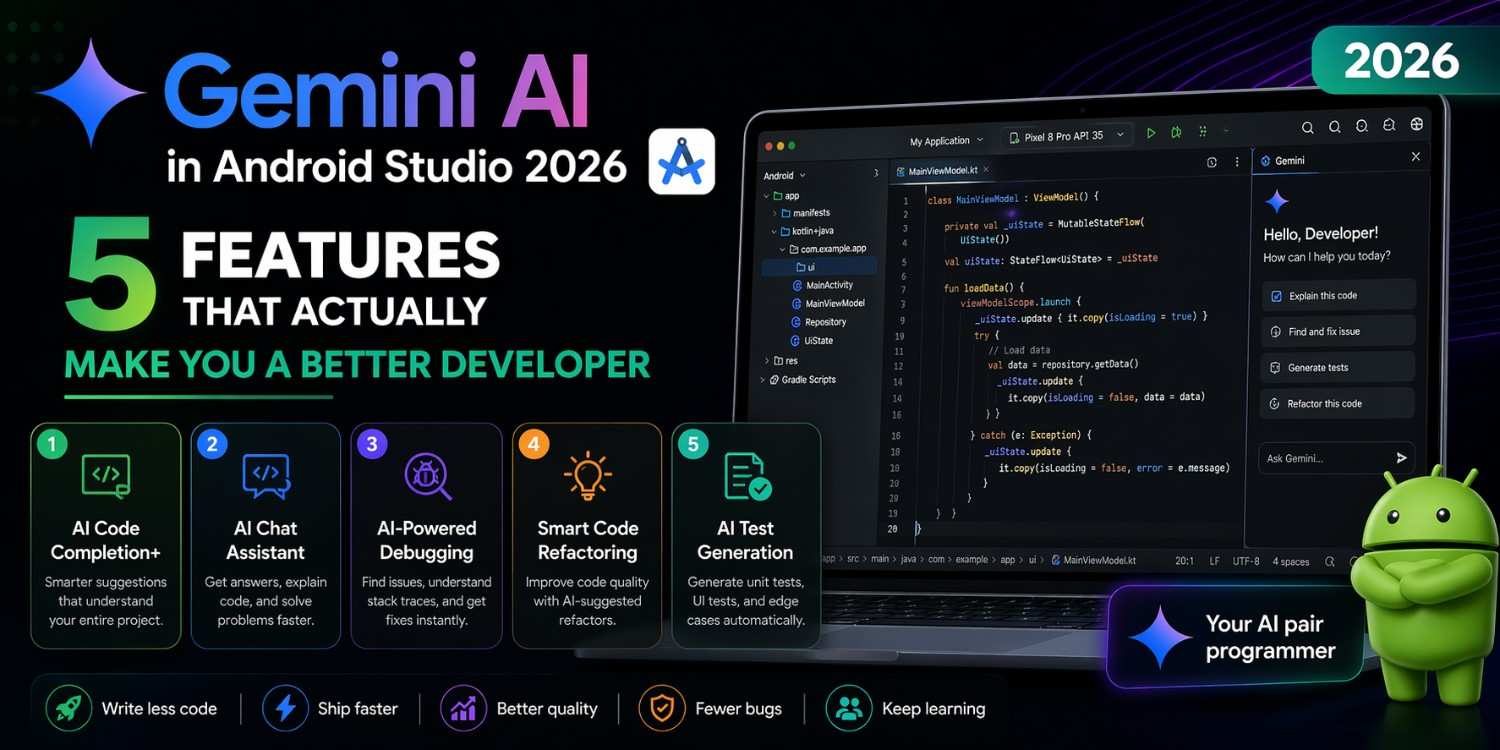
When people first hear that Gemini AI Android Studio integration exists, the reaction is usually one of two things — either excitement, or mild skepticism. “Is this actually useful, or is it just a gimmick?” Having spent real time with it, the honest answer is: it depends entirely on which features you use and how you use them.
In 2026, Gemini AI Android Studio isn’t a separate tool you open in another tab. It’s woven directly into the coding environment — appearing inline in the editor, sitting in a side panel, and offering suggestions right next to the code you’re looking at. For beginners especially, that kind of in-context help changes the learning experience in meaningful ways.
This guide focuses on five specific features that actually make a measurable difference. Not every Gemini feature deserves equal attention — these five do.
How to Access Gemini in Android Studio
Before getting into the features, let’s quickly cover where to find Gemini AI Android Studio tools in the interface.
Look for the Gemini icon in the right side panel of Android Studio — clicking it opens the Gemini chat panel. You can also reach it through Tools → Gemini. Beyond the chat panel, Gemini appears inline in the code editor itself, offering suggestions, explanations, and error help directly beside your code.
Some features require signing into a Google account inside Android Studio. A free tier is available, with more advanced capabilities through Google One or Google Workspace plans. Setup takes about two minutes and is worth doing before you start exploring the features below.
Feature 1: Inline Code Completion With Android Context
The Feature You’ll Use Every Single Day
This is the most frequently used part of Gemini AI Android Studio, and for good reason. Standard autocomplete finishes a method name or suggests a variable. Gemini’s inline completion goes several steps further — it understands Android-specific patterns and suggests complete, contextually relevant code blocks.
Write the opening of a LazyColumn in a Compose file, and Gemini can suggest the entire item Composable structure — including proper key parameters and the content lambda. Start setting up a ViewModel, and it suggests the full StateFlow pattern with the private mutable backing property and the public read-only exposure, structured exactly how Android architecture guidelines recommend.
What separates this from generic completion tools is context awareness. Gemini AI Android Studio looks at your existing state classes, your use cases, the screen you’re currently building — and generates suggestions that fit your actual project, not just copy-pasted templates from the internet.
For beginners, this quietly removes one of the most frustrating learning obstacles: “I understand what I want to build, but I can’t remember the exact syntax.” That friction slows learning more than people realize, and Gemini reduces it significantly.
Feature 2: Code Explanation — Understand Any Code Instantly
Every developer eventually opens a file they didn’t write. Maybe it’s from a tutorial, auto-generated by a tool, inherited from another project, or copied from a Stack Overflow answer three months ago. Understanding what that code actually does is often the real bottleneck — not writing new code.
Gemini AI Android Studio handles this with a simple workflow. Select any block of code, right-click, and choose Gemini → Explain This Code. The Gemini panel opens with a clear, plain-English breakdown — what the code does, why it’s structured that way, and what each individual component means.
This is especially valuable for beginners encountering unfamiliar patterns. A coroutine chain with multiple operators, a Hilt module with several bindings, a Room database migration — these are genuinely confusing the first time you see them. Gemini explains them in accessible language without requiring you to hunt through multiple documentation pages.
There’s an extra benefit worth mentioning: the explanation often surfaces edge cases and potential issues in the code beyond just basic description. That bonus perspective is something a documentation search rarely provides.
Feature 3: Error Resolution Suggestions
Turning Cryptic Error Messages Into Actionable Fixes
Build errors are a daily reality in Android development, and for beginners they can feel like a wall. The message is technical, the stack trace is long, and it’s genuinely hard to know where to start. This is where Gemini AI Android Studio earns its place.
When your build fails or the editor shows an error, click on the error marker in the gutter or select the error in the Build panel. You’ll see an option to ask Gemini for help. It analyzes the error message alongside the surrounding code and provides a specific, contextual suggestion.
Not “check your imports” — that’s useless advice. More like: “This error occurs because rememberCoroutineScope() is being called outside a Composable function. Move it inside the @Composable function that actually needs it.” That’s the kind of Android-specific guidance that a generic web search rarely surfaces on the first try.
To be fair — the suggestions aren’t always correct. Very recent API changes or project-specific constraints can throw Gemini off. You still need to understand what the fix means before applying it, not just paste it in blindly. But the accuracy rate is high enough that this feature saves real time on a regular basis, especially for common beginner errors.
Feature 4: Automated Test Generation
Writing unit tests is something many beginners skip. It feels like additional work on top of already-challenging feature development, and the “I’ll add tests later” habit forms quickly. Gemini AI Android Studio makes test generation fast enough that the excuse genuinely evaporates.
Select a ViewModel function or a Use Case, right-click, and choose Gemini → Generate Unit Tests. Gemini produces a test file covering the main logic paths — success cases, failure cases, and edge cases derived from the function’s logic.
Here’s a simplified example of what that output looks like:
kotlin
@Test
fun `login with valid credentials updates state to success`() = runTest {
    val viewModel = LoginViewModel(fakeAuthRepository)
    viewModel.processIntent(LoginIntent.Submit("user@test.com", "password123"))
    assertEquals(LoginUiState.Success, viewModel.uiState.value)
}
The generated tests need review — Gemini AI Android Studio doesn’t know your specific mock setup and sometimes uses placeholder implementations that need filling in. But having a working test scaffold to refine is dramatically faster than starting from a blank file. And the process of reviewing Gemini’s tests is itself a useful learning exercise — it shows you what good test structure looks like.
For anyone exploring testing best practices further, the official Android testing documentation is the best companion resource alongside Gemini’s generated output.
Feature 5: Refactoring Assistance
As your Android knowledge grows, you’ll look back at code you wrote a few months earlier and see it differently. The logic is right, but the structure isn’t. The repository is being called directly from the Composable. The adapter hasn’t been converted to LazyColumn yet. The ViewModel is mixing too many concerns.
Refactoring this manually requires holding the original intent in your head while applying a structural transformation carefully — without breaking any existing behavior. Gemini AI Android Studio makes this process meaningfully faster.
You can ask directly in the chat panel with a specific request: “Refactor this Fragment to use ViewModel with StateFlow instead of calling the repository directly.” Or: “Convert this RecyclerView adapter to a Compose LazyColumn.” Gemini generates the refactored version and explains what changed and why.
For MVI pattern migrations especially — generating the initial Intent and State class structure from an existing ViewModel — this feature provides a solid first draft that you then refine. The Android architecture guide is a helpful reference for understanding whether Gemini’s refactoring output aligns with recommended patterns.
The critical habit here: always review the output thoroughly, run your existing tests, and verify behavior before accepting any changes. Gemini AI Android Studio produces an excellent first draft. Your review and testing are what make it production-ready.
Using Gemini Effectively: What Beginners Often Get Wrong
A few practical notes on getting real value from Gemini AI Android Studio rather than just using it as a code copy-paste machine.
Be specific with your questions. “Help me with my ViewModel” produces a generic, not-very-useful response. “My ViewModel is calling the repository directly inside a Composable — how should I restructure this to properly separate concerns?” produces something actually actionable. The quality of what you get out is closely tied to the quality of what you put in.
Use it to learn, not just to get code. When Gemini generates something, read the explanation alongside it. Ask follow-up questions about parts you don’t fully understand. The goal should be growing your own understanding — not accumulating code you can’t maintain or explain.
Always verify generated code. Gemini makes mistakes, particularly with very recent API changes or constraints specific to your project that it can’t see. Build the code, run the tests, and check the behavior before treating anything as done.
Combine the features together. Use code explanation to understand something unfamiliar. Use inline completion while writing your version of it. Use test generation to cover the new code. Use error resolution when something breaks unexpectedly. Used in combination, these features are significantly more powerful than any one of them alone.
Final Conclusion
Gemini AI Android Studio in 2026 is genuinely useful — not a marketing feature added for the announcement. Inline code completion with Android context, instant code explanation, error resolution, automated test generation, and refactoring assistance are five features that address real, daily pain points in Android development.
For beginners, the value is particularly clear: you can understand unfamiliar patterns faster, work through errors without getting completely stuck, and start writing tests without staring at a blank file. Used thoughtfully — with review, curiosity, and your own judgment — Gemini AI Android Studio accelerates both your productivity and your actual learning. That combination is genuinely rare, and worth taking advantage of from day one.