Mukesh@gmail.com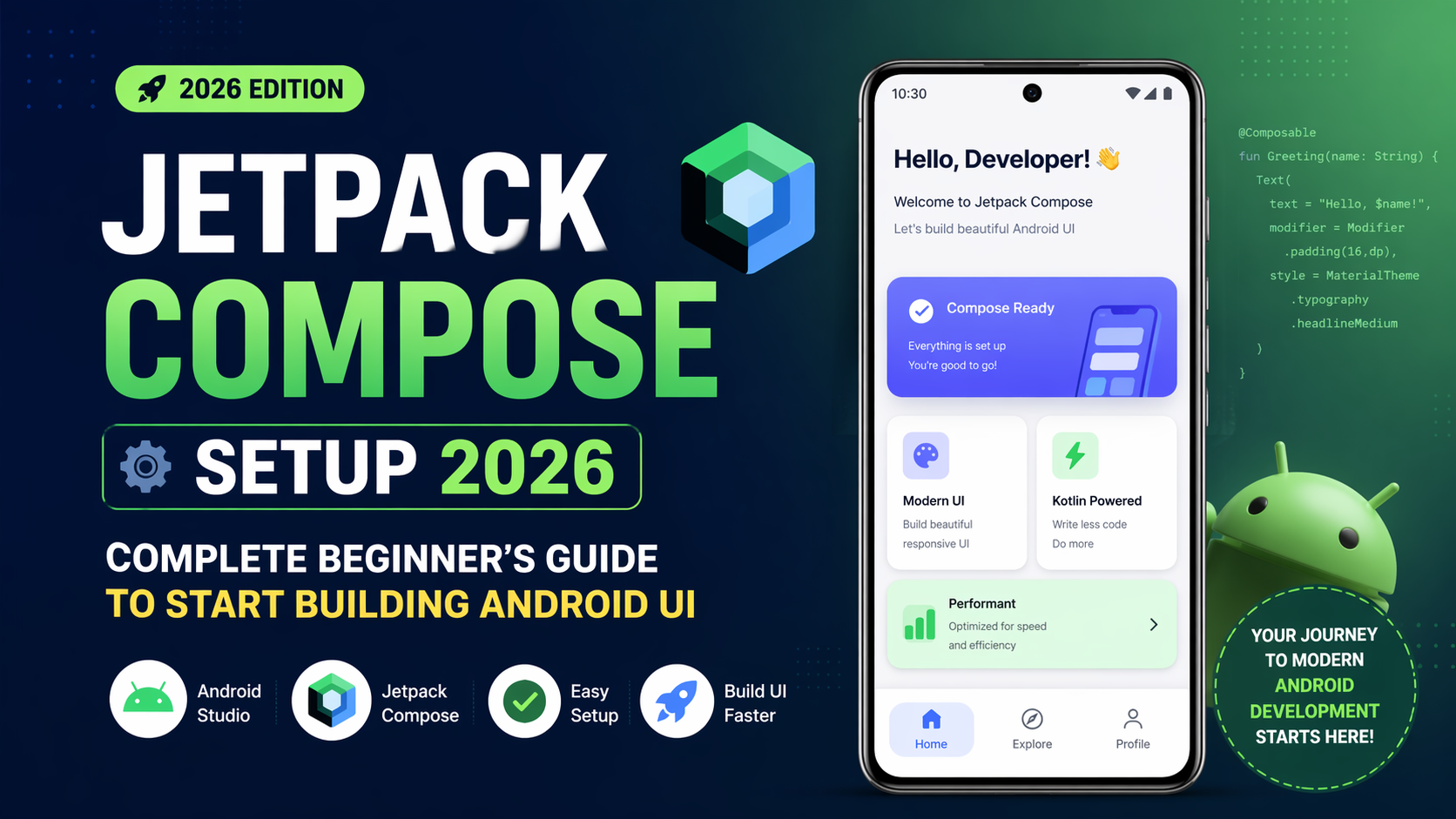
If you’re just getting into Android development in 2026, there’s one thing worth saying upfront: forget XML layouts for now. The Jetpack Compose setup is what you need to focus on. Compose is the current standard for Android UI development, and Google has been clear — new tools, features, and documentation are all built around Compose first. Starting with the old View system in 2026 would be like learning to drive in reverse.
That said, the first time you try to set up a Compose project, it can feel a bit overwhelming. Which template do you choose? What do all these dependencies mean? Why isn’t the preview showing anything? This guide walks through every step of a proper Jetpack Compose setup, from creating your first project to writing your first working Composable.
What Jetpack Compose Actually Is
Before touching any code, it helps to understand what makes Compose different from the old way of building Android UIs.
Compose is a declarative UI framework. In plain terms, that means instead of telling the app how to update the screen — show this button, hide that text, update this value — you describe what the screen should look like based on the current data. When the data changes, Compose figures out what to redraw on its own.
If you’ve worked with React or Flutter before, this pattern will feel familiar. If not, just remember: with a proper Jetpack Compose setup, you write Kotlin functions that describe your UI, and those functions re-run automatically whenever the underlying data changes.
No XML files. No findViewById(). No notifyDataSetChanged(). Just Kotlin and state.
Starting With the Right Project Template
Open Android Studio and select New Project. On the template selection screen, choose Empty Activity. This creates a minimal, Compose-ready project without unnecessary boilerplate.
Some versions of Android Studio also show Empty Compose Activity as a separate option — either works fine. In the most recent versions, “Empty Activity” already defaults to Compose.
Fill in your project details carefully:
- Name: Your app’s name
- Package name: Reverse domain format — something like
com.yourname.appname - Save location: Where you want the project folder on your disk
- Language: Kotlin — this is required for a proper Jetpack Compose setup
- Minimum SDK: API 24 (Android 7.0) is the practical choice for 2026. It covers the overwhelming majority of active Android devices without cutting anyone out unnecessarily.
Click Finish and give Gradle a few minutes to sync. This first sync is slow because it’s downloading all the dependencies your project needs. Totally normal.
Understanding the Compose Dependencies
Once the project is created, open your app-level build.gradle.kts file. You’ll find Compose-related configuration already added by the template. A standard Jetpack Compose setup in 2026 looks like this:
kotlin
android {
    buildFeatures {
        compose = true
    }
    composeOptions {
        kotlinCompilerExtensionVersion = "1.5.14"
    }
}

dependencies {
    val composeBom = platform("androidx.compose:compose-bom:2024.09.00")
    implementation(composeBom)

    implementation("androidx.compose.ui:ui")
    implementation("androidx.compose.ui:ui-tooling-preview")
    implementation("androidx.compose.material3:material3")
    implementation("androidx.activity:activity-compose:1.9.0")
    implementation("androidx.lifecycle:lifecycle-viewmodel-compose:2.8.5")

    debugImplementation("androidx.compose.ui:ui-tooling")
}
The most important thing here is the Compose BOM — Bill of Materials. Instead of manually specifying a version number for every single Compose library, the BOM handles version alignment automatically. All your Compose libraries stay on compatible versions together. Update the BOM version, and everything updates in sync. This was a major source of confusion in early Compose projects, and the BOM solves it cleanly.
For a deeper look at how Compose dependencies are structured, the official Jetpack Compose setup documentation is the most reliable reference.
Your First Composable Function
Open MainActivity.kt. The template already has a working example waiting for you:
kotlin
class MainActivity : ComponentActivity() {
    override fun onCreate(savedInstanceState: Bundle?) {
        super.onCreate(savedInstanceState)
        setContent {
            MyAppTheme {
                Greeting(name = "Android")
            }
        }
    }
}

@Composable
fun Greeting(name: String) {
    Text(
        text = "Hello $name!",
        modifier = Modifier.padding(16.dp)
    )
}
A few things worth noticing here. setContent replaces the old setContentView(R.layout.activity_main) — there’s no layout XML file being loaded. The @Composable annotation tells Kotlin that this function describes UI, not logic. And Text is simply Compose’s version of TextView.
Before writing anything new, run this on your emulator or a connected device. You should see “Hello Android!” on screen. If you do, your Jetpack Compose setup is working correctly and you can start building from here.
The Preview Feature: See UI Without Running the App
One of the best things about a proper Jetpack Compose setup is the @Preview annotation. It lets Android Studio render your Composable directly in the editor — no emulator, no device, no build needed.
kotlin
@Preview(showBackground = true)
@Composable
fun GreetingPreview() {
    MyAppTheme {
        Greeting(name = "Preview")
    }
}
After adding this, look for the Split or Design toggle in the top-right corner of the editor. Click it and you’ll see your UI rendered live alongside your code.
This changes how you work. Instead of building, deploying, checking, going back, editing, and repeating — you see layout changes almost instantly. For UI-heavy development, this alone is a strong argument for completing your Jetpack Compose setup properly from the start.
Adding Navigation Between Screens
Setting Up Compose Navigation
A real app needs more than one screen. The standard approach for a Jetpack Compose setup with multiple screens is Compose Navigation.
Add this dependency to your build.gradle.kts:
kotlin
implementation("androidx.navigation:navigation-compose:2.8.3")Then set up a basic navigation graph like this:
kotlin
@Composable
fun AppNavigation() {
    val navController = rememberNavController()
    NavHost(navController = navController, startDestination = "home") {
        composable("home") { HomeScreen(navController) }
        composable("detail") { DetailScreen() }
    }
}
Each composable() block defines a destination. Calling navController.navigate("detail") moves the user to that screen. This is the core navigation pattern that every multi-screen Compose app builds on.
Setting Up ViewModel With Compose
Compose handles UI. ViewModel handles data and business logic. Together, they form the backbone of a well-structured Android app.
The ViewModel Compose dependency is already in the dependency list above. Here’s how the pattern looks in practice:
kotlin
class HomeViewModel : ViewModel() {
    private val _greeting = MutableStateFlow("Hello, World!")
    val greeting: StateFlow<String> = _greeting.asStateFlow()
}

@Composable
fun HomeScreen(viewModel: HomeViewModel = viewModel()) {
    val greeting by viewModel.greeting.collectAsState()
    Text(text = greeting)
}
```

The `collectAsState()` extension is the key piece here. It converts a `StateFlow` from your ViewModel into Compose state, so whenever the data changes, the UI automatically redraws. This is the standard pattern for a production-quality **Jetpack Compose setup** and it's worth understanding early.

You can also explore how [Android Architecture Components work with Compose](https://developer.android.com/topic/architecture) to build a solid foundation for larger apps.

---

## Common First-Time Setup Errors

### "Composable Invocations Can Only Happen From a @Composable Function"

This is one of the most common errors beginners encounter. It means you're calling a Composable from a regular function. Every function that calls Composables — directly or indirectly — must itself be marked `@Composable`. Check your call chain and add the annotation where it's missing.

### Kotlin Version Incompatibility

Compose requires a specific Kotlin version to compile correctly. If your Gradle sync fails with messages about Kotlin and Compose compatibility, check the official Compose-to-Kotlin version compatibility table and align your versions. This is a common stumbling block in a new **Jetpack Compose setup** and easy to fix once you know where to look.

### Preview Not Showing

If the `@Preview` panel is blank or throwing an error, try **Build → Make Project** first. The preview renderer sometimes needs at least one successful build before it can display anything. This is a known quirk, not a sign that your **Jetpack Compose setup** is broken.

---

## Final Conclusion

Getting a working **Jetpack Compose setup** in Android Studio in 2026 is genuinely manageable for beginners — it just requires paying attention to a few specific details. Choose the right project template, understand what the Compose BOM does for your dependency management, run the default code to confirm everything works, and then start building one Composable at a time.

The declarative approach takes a little getting used to, but once it clicks, building Android UIs becomes noticeably faster and more intuitive than the old XML workflow. The `@Preview` feature alone makes the switch worthwhile. Start small, check that your setup works early, and build from there.

---

**Related Keywords:** Jetpack Compose setup, Jetpack Compose setup 2026, Compose BOM Android, Android Studio Compose guide, first Composable function tutorial, Compose Navigation setup, ViewModel Compose 2026, @Preview Compose Android Studio, Jetpack Compose dependencies 2026, Android Compose project template, Kotlin Compose version compatibility, setContent Android Compose, Jetpack Compose beginners guide, declarative UI Android, Android UI development 2026

---
---

# ARTICLE 4

---

**Focus Keyword:** Gradle Sync Failed

**SEO Title:** Gradle Sync Failed 2026: 10 Practical Solutions to Fix It Fast in Android Studio

**Permalink:** gradle-sync-failed-2026-practical-solutions-fix-android-studio

**Meta Description:** Getting "Gradle sync failed" in Android Studio? This practical guide covers 10 real solutions for 2026 — from clearing caches and fixing version mismatches to JDK settings and dependency conflicts. Written for beginners in simple English with step-by-step instructions. Stop guessing and start fixing the Gradle sync failed error the right way.

---

# Gradle Sync Failed 2026: 10 Practical Solutions to Fix It Fast in Android Studio

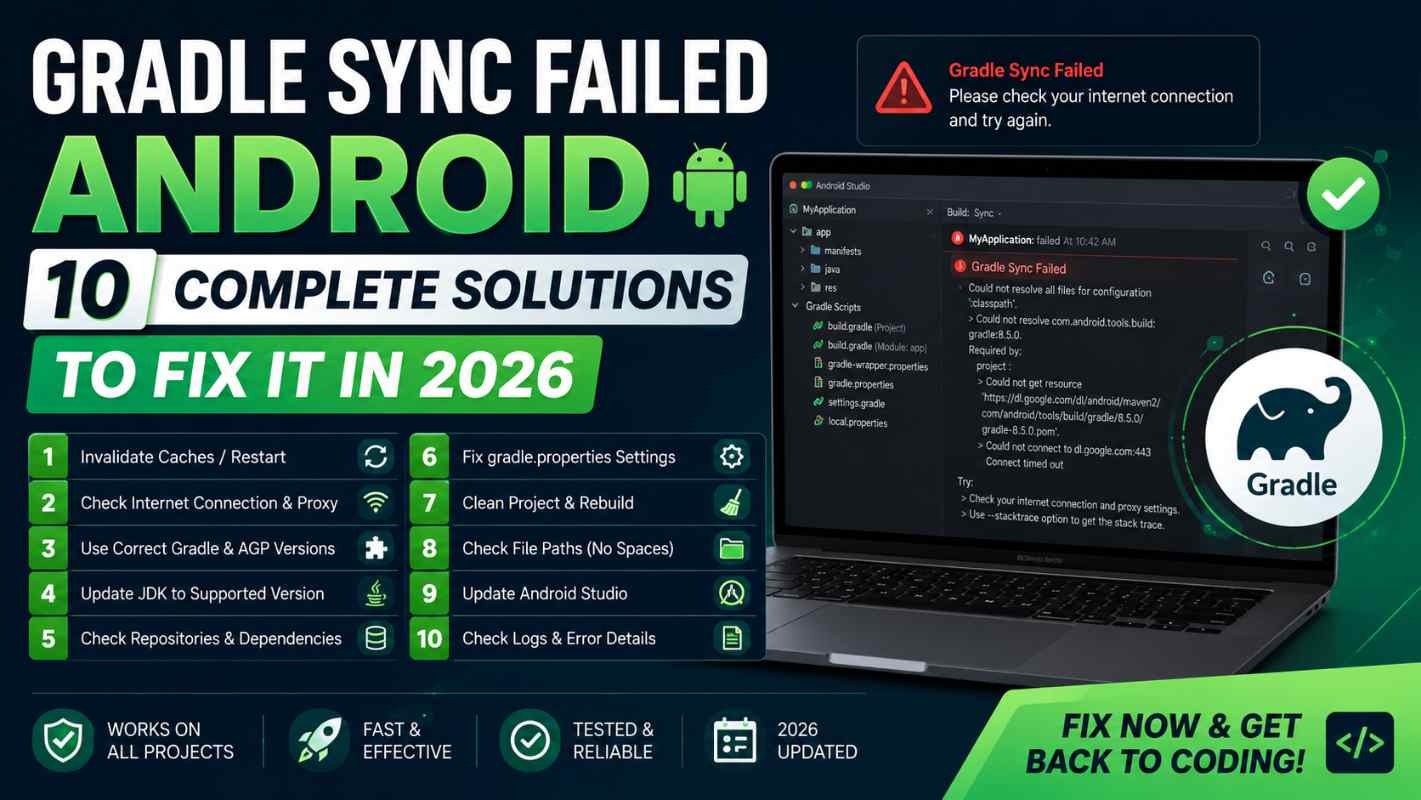
Few things derail a developer's day quite like opening an Android project and seeing **Gradle sync failed** staring back at you before you've written a single line of code. The error messages tend to be long, technical, and — for beginners especially — genuinely hard to interpret.

Here's the thing though: **Gradle sync failed** errors almost always come from a fairly short list of root causes. Version mismatches, corrupted cache files, network issues, and configuration typos are responsible for the overwhelming majority of cases. Work through these ten solutions systematically, and you'll fix it. Let's get into it.

---

## What Gradle Sync Actually Does

Before jumping into solutions, a quick explanation helps. When you open a project in Android Studio, Gradle runs in the background to download your dependencies, read your build configuration files, and prepare everything the IDE needs to build and run your app.

If anything goes wrong during that process — a library can't be downloaded, two versions conflict, a build file has a typo — you get **Gradle sync failed**. The error appears in the **Build** panel at the bottom of Android Studio.

One important habit: always read the actual error message in that panel, not just the headline. The specific text usually points directly at the cause. This alone saves a lot of time.

---

## Solution 1: Check Your Internet Connection

It sounds almost too simple, but a broken or blocked internet connection is one of the most common reasons **Gradle sync failed** appears — especially on a first project sync or after adding new dependencies.

Gradle downloads libraries from remote repositories like Maven Central and Google's Maven repository. If those requests are failing, sync fails. Open a browser and check if websites load normally. If you're on a corporate or university network, a firewall might be blocking Gradle's outbound requests. Testing on a mobile hotspot can quickly confirm whether the network is the issue.

---

## Solution 2: Invalidate Caches and Restart

Android Studio maintains a local cache of project data. When that cache becomes corrupted — which happens more often than you'd think — **Gradle sync failed** errors start appearing for no obvious reason.

The fix is straightforward. Go to **File → Invalidate Caches / Restart → Invalidate and Restart**. Android Studio clears the cache, restarts, and re-syncs the project from scratch. This resolves a surprisingly large number of mysterious sync failures that have nothing to do with your actual project configuration.

---

## Solution 3: Update the Gradle Wrapper Version

Every Android project contains a `gradle/wrapper/gradle-wrapper.properties` file that specifies which version of Gradle to use. If that version is outdated or incompatible with your current Android Studio version, **Gradle sync failed** is a likely result.

Open that file and look at the `distributionUrl` line. It will look something like this:
```
distributionUrl=https\://services.gradle.org/distributions/gradle-8.7-bin.zip
Android Studio often displays a yellow banner in this file offering to update automatically — click it. If not, check the Android Gradle Plugin release notes for the recommended Gradle version that matches your AGP version and update the URL manually.
Solution 4: Fix AGP and Kotlin Version Mismatch
The Most Overlooked Cause of Gradle Sync Failed
This one trips up a lot of beginners. The Android Gradle Plugin (AGP) and Kotlin plugin versions must be compatible with each other. When they’re not, Gradle sync failed appears almost immediately after the project opens.
In your project-level build.gradle.kts, the relevant section looks like:
kotlin
plugins {
    id("com.android.application") version "8.5.0" apply false
    id("org.jetbrains.kotlin.android") version "2.0.0" apply false
}
If these versions don’t match on the compatibility chart, sync will fail. Google maintains an official compatibility table — check it, align your versions, and try syncing again. This single fix resolves a significant portion of Gradle sync failed reports from beginners.
Solution 5: Check for Typos in Build Files
A single missing parenthesis or an extra comma in build.gradle.kts is enough to break the entire build configuration. Android Studio usually underlines these errors in red, but the markers aren’t always easy to spot — especially in longer files.
If you recently edited any build file and Gradle sync failed appeared right after, that’s your first place to look. Check the Build panel error for a line number reference. Gradle is fairly specific about where syntax errors occur, and the message usually includes enough detail to find the problem quickly.
Solution 6: Clear the Gradle Cache Manually
Sometimes the cached files on your disk are the problem — partially downloaded dependencies, corrupted indexes, old data that conflicts with newer library versions. When Gradle sync failed keeps happening even after you’ve verified your configuration looks correct, manually clearing the Gradle cache is worth trying.
The cache lives here:
- Windows:
C:\Users\YourName\.gradle\caches - Mac/Linux:
~/.gradle/caches
Delete the caches folder only — not the entire .gradle directory. The next sync will re-download everything, which takes a few extra minutes, but it clears out whatever was causing the persistent failure.
Solution 7: Resolve Dependency Version Conflicts
When two libraries in your project both require different versions of the same third-party dependency, Gradle can fail trying to resolve the conflict. The error message usually contains “Could not resolve” or mentions a “version conflict.”
You can force a specific version in your build.gradle.kts to break the deadlock:
kotlin
configurations.all {
    resolutionStrategy {
        force("com.example:library:1.5.0")
    }
}
A longer-term solution is using BOMs — like the Compose BOM — wherever possible. BOMs pre-align compatible library versions and reduce the chance of conflicts appearing in the first place. If Gradle sync failed due to version conflicts is a recurring problem, leaning more heavily on BOMs is a practical fix.
Solution 8: Verify Your JDK Version
JDK Mismatches Cause More Gradle Sync Failed Errors Than People Expect
Android Studio uses a JDK internally to run Gradle. If the JDK version doesn’t match what your Gradle or AGP version expects, Gradle sync failed is the result.
Go to File → Project Structure → SDK Location and look at the Gradle JDK setting. In current versions of Android Studio, the recommended option is the bundled JDK — labeled something like “Android Studio default JDK.” If you’ve previously pointed this at an external JDK — an older Java 8 installation, for example — switching back to the bundled version often fixes the issue immediately.
Solution 9: Check Repository Configuration
If a dependency simply can’t be found, Gradle sync fails. This can happen when a library has moved repositories, a custom repository URL has changed, or the standard repositories aren’t listed properly.
Open your project-level settings.gradle.kts and check the repositories block:
kotlin
dependencyResolutionManagement {
    repositories {
        google()
        mavenCentral()
    }
}
Both google() and mavenCentral() should be present. If you’re using a private repository, double-check the URL and any required credentials. A missing google() entry alone can cause Gradle sync failed for almost any Jetpack or Android library.
Solution 10: Re-import or Recreate the Project
This is the last resort — but it works when nothing else does. Close your project in Android Studio. In your project folder on disk, delete the .idea folder and any *.iml files. These are IDE-generated files, not your source code, so deleting them is safe.
Reopen the project. Android Studio regenerates all of those files from scratch during the new import, which resolves cases where the IDE-level configuration has drifted out of alignment with the actual project structure.
If Gradle sync failed persists even after this, create a fresh project with identical settings and copy your source files across. It’s a last resort, but occasionally necessary with severely corrupted project states.
How to Read Gradle Error Messages Properly
One skill that makes diagnosing Gradle sync failed much faster is knowing how to read the error output. In the Build panel, the root cause is almost always at the bottom of the output — not the top. The top shows where the failure was detected in the build process. The bottom shows what actually triggered it.
Look specifically for lines starting with >. These are the root cause messages. “Could not resolve com.example:library:2.0” points to a download or dependency problem. “Unresolved reference” points to a Kotlin compilation issue. “Expected 1 argument but found 0” points to an API mismatch.
Reading the error properly often makes the solution obvious — and saves you from trying fixes that aren’t relevant to your actual problem.
Final Conclusion
Gradle sync failed is one of the most common errors in Android development, but it’s also one of the most fixable. Internet connectivity, corrupted caches, version mismatches between AGP and Kotlin, JDK configuration, and dependency conflicts cover the vast majority of real-world cases. Working through these ten solutions in order gives you a reliable, systematic way to diagnose and resolve the problem without panic-searching through forums.
The underlying habit that makes all of this easier is simple: read the actual error message before trying anything. It usually tells you exactly what went wrong. Everything else is just knowing which setting to check and where to find it.