Mukesh@gmail.com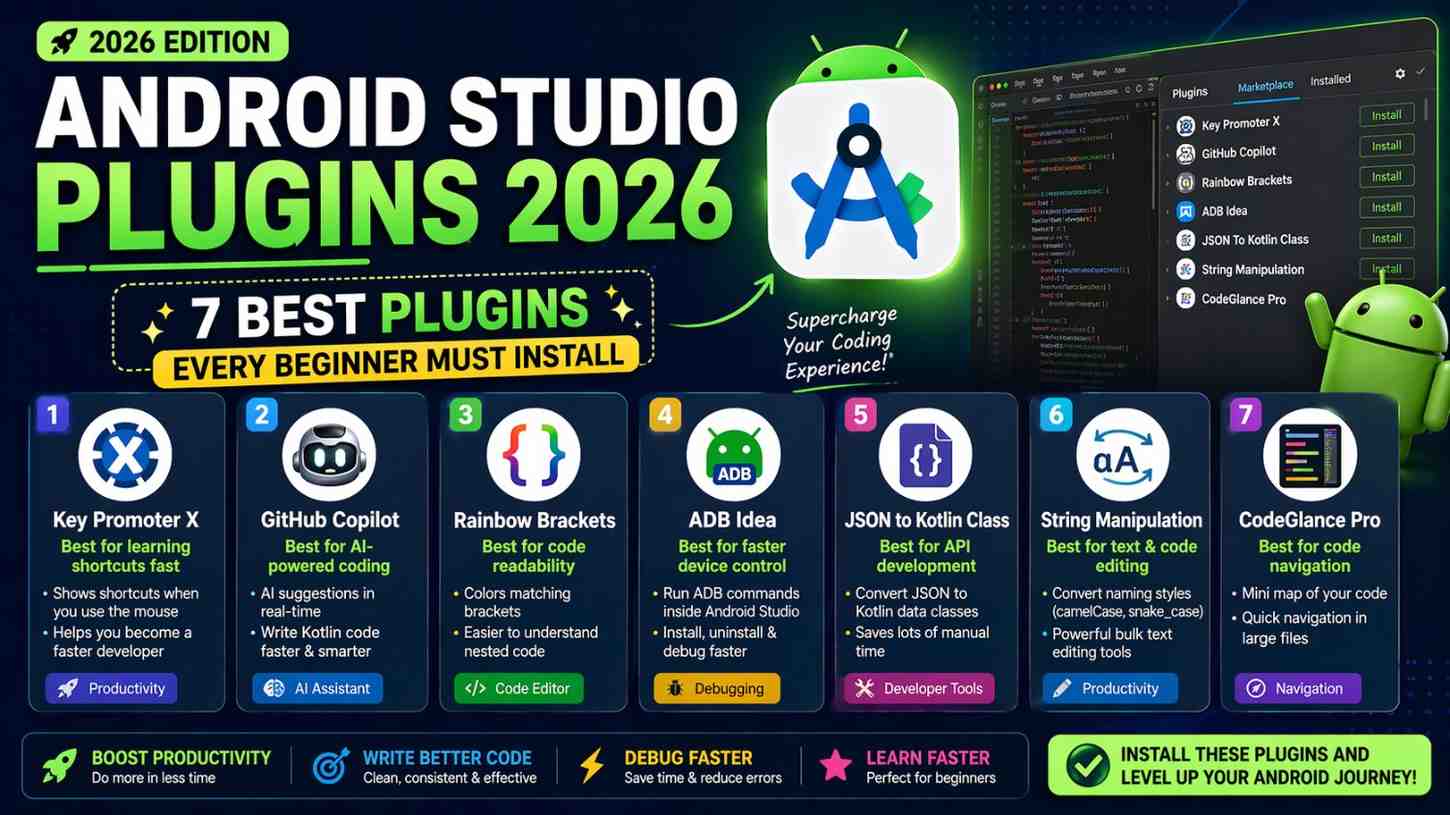
If you’ve just set up Android Studio and started writing your first Kotlin code, you’re probably using the IDE in its default state. That works fine at the beginning. But once you spend a few days in it, you start noticing friction — repetitive steps, hard-to-read nested code, terminal commands you keep typing manually. That’s exactly where Android Studio plugins come in.
Plugins are small add-ons that slot into the IDE and extend what it can do. Some save time, some improve readability, and some just make the whole experience feel less clunky. The marketplace has hundreds of them, and honestly, most aren’t worth your attention. This guide focuses on seven Android Studio plugins that genuinely make a difference — especially if you’re still learning the ropes in 2026.
How to Install Android Studio Plugins
Before jumping into the list, here’s how installation works. Open Android Studio and go to File → Settings → Plugins (on Mac, it’s Android Studio → Settings → Plugins).
You’ll see two tabs — Marketplace and Installed. Use the Marketplace tab to search for any plugin by name. Click Install, and when it asks you to restart the IDE, go ahead and do that. Most Android Studio plugins activate right after the restart without any additional setup.
That’s it. Simple process, takes under a minute per plugin.
1. Key Promoter X
This one is probably the most quietly useful Android Studio plugin on the entire list — especially for beginners who rely heavily on clicking through menus.
Here’s what it does: every time you use the mouse to perform an action that has a keyboard shortcut, Key Promoter X pops up a small notification in the corner showing you what that shortcut is. You don’t have to memorize anything intentionally. Over a few weeks of normal work, the shortcuts you use most often just stick.
Keyboard shortcuts matter more than most beginners realize. Formatting code, jumping to a file, renaming a variable, opening the terminal — all of these are faster with keys than with clicks. Key Promoter X gets you there without any dedicated practice sessions.
For someone who’s new to Android Studio, this plugin builds real IDE proficiency as a natural side effect of writing code. It’s the kind of tool that pays off more the longer you use it.
2. ADB Idea
ADB stands for Android Debug Bridge — it’s the tool that handles communication between Android Studio and your connected Android device or emulator. If you’ve ever needed to clear an app’s data to test a fresh install, revoke a permission, or fully uninstall an app from a device, you know it usually means opening a terminal and typing commands.
ADB Idea removes that friction entirely. Once installed, you get options like ADB Uninstall App, ADB Clear App Data, and ADB Revoke Permissions right inside the IDE — accessible with a right-click.
For testing, this is genuinely valuable. Simulating a first-time user experience, resetting stored preferences, testing permission flows — all situations where you’d otherwise be switching back and forth between the IDE and the terminal. ADB Idea is one of those Android Studio plugins that you won’t fully appreciate until you’ve used it a few times, and then you won’t want to work without it.
3. Rainbow Brackets
Kotlin code — especially when you’re working with Jetpack Compose — involves a lot of nested brackets, parentheses, and curly braces. When you’re three or four levels deep in a Composable function, it gets genuinely hard to match opening and closing brackets just by looking.
Rainbow Brackets solves this by giving each nesting level its own color. The outermost bracket pair is one color, the next level is another, and so on. It sounds minor, but when you’re staring at a dense lambda chain or a complex UI tree, this color coding makes the structure immediately clear.
After about a week with this plugin, going back to monochrome brackets feels uncomfortable. It’s one of those Android Studio plugins where the benefit is hard to explain until you’ve actually experienced it — and then it becomes obvious.
4. GitToolBox
Inline Blame — The Feature That Changes Everything
Android Studio already has basic Git support built in. GitToolBox takes that further with one standout feature: inline blame. This means the author, commit message, and timestamp of the last edit appear directly beside every line of code, right in the editor — no separate panel needed.
When you’re reading through code you didn’t write, or code you wrote three months ago and can’t quite remember, that inline context is incredibly useful. You can see exactly when something changed and why, without leaving the file you’re in.
GitToolBox also keeps your branch status visible in the status bar and can auto-fetch from remote at set intervals, so you’re always aware of new commits from others.
For anyone learning Git and Android development at the same time, GitToolBox is one of the most practical Android Studio plugins available. The inline blame feature alone justifies the install.
5. Statistic
This one is a bit different from the others. It doesn’t speed up any particular task — it gives you a bird’s-eye view of your project.
The Statistic plugin adds a dedicated tab inside Android Studio showing a breakdown of your project by file type, line count, and package. How many lines of Kotlin do you have? How does that compare to XML? How large is each module?
For beginners working on their first real app, these numbers are surprisingly motivating. Watching your project grow from a few hundred lines to a few thousand gives a concrete sense of progress. And when you’re studying an open-source project or a codebase you’ve inherited, Statistic helps you understand the shape of it quickly.
It’s a lightweight, low-impact plugin — one of those Android Studio plugins that doesn’t change how you code, but adds perspective that’s genuinely useful.
6. Tabnine (AI Code Completion)
Android Studio in 2026 comes with Gemini AI built in, and it handles a lot. But Tabnine is worth knowing about as an alternative AI completion option, particularly if you find Gemini’s suggestions don’t always match your preferred style.
Tabnine learns from your codebase and common Android patterns to offer context-aware completions. For Compose-heavy development, it can suggest complete Composable structures based on what’s already in the file. The free tier works without any account and gives you solid suggestions for everyday use.
Think of it as a second opinion on completions. Use it alongside the built-in Gemini features and see which one fits your workflow better. Among Android Studio plugins with AI functionality, Tabnine has one of the longer track records and is actively maintained.
7. .ignore
Every Android project that uses Git needs a proper .gitignore file. Without one, you risk committing build folders, IDE-generated files, and local configuration into your repository — which creates noise, bloat, and sometimes real problems when others try to use your project.
Setting this up manually means remembering patterns like .idea/, *.iml, build/, local.properties, and several others. The .ignore plugin handles all of that automatically.
Right-click on your project root, go to New → .ignore file → .gitignore, select Android and Android Studio from the template options, and within seconds you have a complete, accurate .gitignore file.
For anyone starting their first project and pushing to GitHub, this is one of the most practical Android Studio plugins to install before you write a single line of code. It prevents a common beginner mistake that’s annoying to clean up later.
Android Studio Plugins You Should Avoid
Not everything in the marketplace is worth your time. A few things to watch out for:
Heavy theme plugins look great in screenshots but often add real startup lag. If your IDE starts feeling slow after installing something, the theme plugin is usually the first suspect.
Outdated plugins are a genuine risk. Always check the last update date before installing. A plugin that hasn’t been touched in two years may conflict with current Android Studio versions and cause unpredictable behavior.
Plugins that claim to auto-optimize or rewrite your code — these are almost always unreliable and occasionally destructive. Stick to tools that assist rather than automate decisions.
The seven Android Studio plugins covered in this list are all actively maintained, lightweight, and stable with current IDE versions.
Final Conclusion
Picking the right Android Studio plugins isn’t about loading up on features — it’s about removing friction that quietly slows you down every day. Key Promoter X builds shortcut habits without effort. ADB Idea removes terminal round-trips. Rainbow Brackets untangles nested code visually. GitToolBox adds commit context right where you need it. Statistic gives you a project-level view. Tabnine extends AI assistance with a different approach. And .ignore sets up your Git configuration correctly from the start.
Install these seven, use them for a week, and the IDE will feel meaningfully more comfortable and personal. That’s what good Android Studio plugins actually do — not add complexity, but quietly remove the small obstacles that stack up over a full day of development.