
 Mukesh@gmail.com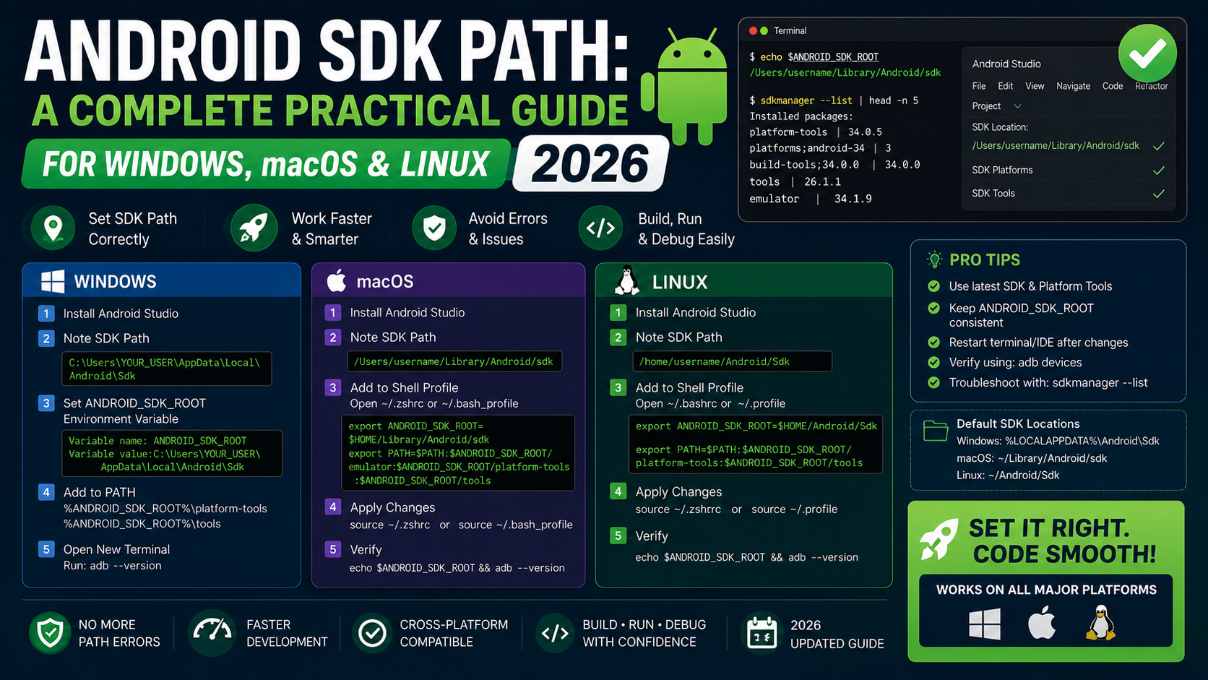
It sounds like a simple thing. You need to know where the Android SDK path is on your machine — maybe Gradle is complaining about a missing local.properties file, maybe you’re setting up a new tool, or maybe adb simply isn’t recognized in your terminal.
But if you’ve never had to find it manually before, the Android SDK path isn’t always obvious. Android Studio installs it in a different location depending on your operating system. And if you’ve ever moved the SDK folder or set it up without Android Studio entirely, the default location might not even be where it currently lives.
This guide covers every reliable method for finding your Android SDK path on Windows, macOS, and Linux — including what to do when the obvious approaches don’t work.
Why the Android SDK Path Actually Matters
Before jumping into the how, it’s worth understanding why this comes up so often in real development.
When you clone a project from GitHub or move it between machines, the local.properties file doesn’t come with it. Gradle needs you to recreate it with the correct sdk.dir value pointing to your Android SDK path.
When you’re setting up environment variables like ANDROID_HOME or ANDROID_SDK_ROOT, you need the exact folder path. When configuring cross-platform tools — Flutter, React Native, CI/CD pipelines — they all need to know the Android SDK path to function correctly.
Getting the path wrong by even a single character causes build failures that can be genuinely confusing to diagnose, especially for developers new to Android tooling.
Method 1 – Find the Android SDK Path Inside Android Studio
The easiest and most reliable method, regardless of your OS, is checking directly inside Android Studio. It tracks its own SDK location in settings and shows you the exact path it’s using.
Steps to Find It
Open Android Studio and navigate to:
- Windows/Linux: File → Settings → Languages & Frameworks → Android SDK
- macOS: Android Studio → Settings → Languages & Frameworks → Android SDK
At the top of the SDK Manager panel, you’ll see a field labeled Android SDK Location. The full Android SDK path is displayed there. Click it and copy the entire path.
This is the most trustworthy source — whatever is shown here is exactly what Android Studio uses for your builds.
If you’re on the welcome screen without a project open, click More Actions → SDK Manager and the same panel appears.
Method 2 – Default Android SDK Path by Operating System
If you installed Android Studio and accepted default options, the SDK was placed in a predictable location for your OS. These are the standard defaults in 2025.
Windows Default Android SDK Path
C:\Users\YourUsername\AppData\Local\Android\SdkThe AppData folder is hidden by default in Windows Explorer. To see it, open File Explorer, click the View tab, and check Hidden items. Or type the path directly into the address bar.
A faster approach: press Win + R, type %LOCALAPPDATA%\Android\Sdk, and press Enter. Windows expands the variable and opens the folder directly.
macOS Default Android SDK Path
~/Library/Android/sdkThe tilde (~) represents your home directory — something like /Users/yourname. So the full Android SDK path would be /Users/yourname/Library/Android/sdk.
The Library folder is hidden in Finder by default. To navigate there, open Finder, press Cmd + Shift + G, type ~/Library/Android/sdk, and press Enter.
From Terminal:
bash
cd ~/Library/Android/sdk
ls
```

### Linux Default Android SDK Path
```
~/Android/sdk
```

The full path would be something like `/home/yourname/Android/sdk`. This is the default when Android Studio creates the SDK directory during setup. If you installed the SDK manually, check wherever you pointed it during the standalone installation.

---

## Method 3 — Find Android SDK Path Using Environment Variables

If `ANDROID_HOME` or `ANDROID_SDK_ROOT` is already set on your system, these variables point directly to the **Android SDK path**. Checking them is often faster than navigating folders.

### On Windows

Open Command Prompt and run:
```
echo %ANDROID_HOME%
```

Or check:
```
echo %ANDROID_SDK_ROOT%
If either variable is set, the Android SDK path prints immediately. A blank line means the variable isn’t configured on your system.
You can also check through the GUI: right-click This PC, click Properties → Advanced system settings → Environment Variables. Look in both User Variables and System Variables for ANDROID_HOME or ANDROID_SDK_ROOT.
On macOS and Linux
Open Terminal and run:
bash
echo $ANDROID_HOMEIf nothing prints, the variable isn’t set in your current shell session. To check your shell config files:
bash
grep -r "ANDROID_HOME" ~/.bashrc ~/.zshrc ~/.bash_profile ~/.profile 2>/dev/nullThis searches common config files for any line containing ANDROID_HOME. If found, the path next to the export statement is your Android SDK path.
Method 4 – Find Android SDK Path Through the Command Line
Using sdkmanager
If sdkmanager is accessible in your terminal, run:
bash
sdkmanager --list_installedThe output shows relative paths for installed packages. Cross-reference with the default paths above to confirm your SDK root.
Using the which or where Command
On macOS and Linux:
bash
which sdkmanager
```

This returns something like:
```
/home/yourname/Android/sdk/cmdline-tools/latest/bin/sdkmanager
```

Strip everything from `/cmdline-tools/` onward and you have your **Android SDK path** — in this example, `/home/yourname/Android/sdk`.

On Windows, use Command Prompt:
```
where sdkmanager
Same logic applies — remove the \cmdline-tools\latest\bin\sdkmanager.bat suffix to get the SDK root.
Using adb to Confirm the Path
If adb is in your PATH:
bash
which adb
```

This returns something like:
```
/home/yourname/Android/sdk/platform-tools/adb
Strip /platform-tools/adb and you have the Android SDK path. On Windows, use where adb for the same result.
Finding the Android SDK Path Without Android Studio
If you set up the SDK manually without Android Studio, there’s no IDE settings panel to check. Your options are environment variables (Method 3) and command-line tools (Method 4).
If neither works because you skipped environment variable setup during installation, search for the SDK directory directly.
On macOS and Linux
bash
find ~ -name "adb" -type f 2>/dev/null
```

Searching your home directory is much faster than searching the entire filesystem. The result gives you the full path to `adb`, from which you can derive the **Android SDK path** by stripping the `/platform-tools/adb` suffix.

### On Windows

Open File Explorer, navigate to `C:\Users\YourUsername\`, and search for `adb.exe`. The folder shown in the results tells you where `platform-tools` lives. The **Android SDK path** is one level up from that folder.

Or use Command Prompt:
```
dir /s /b C:\Users\%USERNAME%\adb.exe 2>nul
```

---

## How to Verify You Found the Right Folder

Once you think you've found the **Android SDK path**, confirm it quickly by checking that the expected folder structure exists inside it.

A valid Android SDK directory contains subdirectories like:
```
platform-tools/
platforms/
build-tools/
cmdline-tools/
emulator/
system-images/
On macOS/Linux:
bash
ls ~/Library/Android/sdk
```

On Windows:
```
dir "C:\Users\YourUsername\AppData\Local\Android\Sdk"
```

If you see `platform-tools` and `platforms` listed, you're in the right place. If the folder is empty or missing these subdirectories, the SDK either isn't installed there or the installation is incomplete.

---

## Setting the Android SDK Path in Your Tools

Finding the path is step one. Making sure your tools know about it is step two.

### In local.properties

Open your Android project's root folder and create or edit `local.properties`. Add your **Android SDK path**:

**macOS/Linux:**
```
sdk.dir=/Users/yourname/Library/Android/sdk
```

**Windows:**
```
sdk.dir=C\:\\Users\\YourName\\AppData\\Local\\Android\\Sdk
The double backslashes on Windows are required — a single backslash causes a parsing error because the properties file format treats backslash as an escape character.
Setting ANDROID_HOME
Setting ANDROID_HOME means you don’t need local.properties in every project. Flutter, React Native, and various CLI tools will find the Android SDK path automatically.
macOS/Linux — add to your ~/.zshrc or ~/.bashrc:
bash
export ANDROID_HOME=~/Library/Android/sdk
export PATH=$PATH:$ANDROID_HOME/platform-tools
export PATH=$PATH:$ANDROID_HOME/cmdline-tools/latest/bin
Then reload:
bash
source ~/.zshrc
```

**Windows** — open System Properties, go to Environment Variables, and add:

- Variable name: `ANDROID_HOME`
- Variable value: `C:\Users\YourName\AppData\Local\Android\Sdk`

Then edit the `Path` variable and add:
```
%ANDROID_HOME%\platform-tools
%ANDROID_HOME%\cmdline-tools\latest\bin
For Flutter Users
After setting your Android SDK path, run flutter doctor in your terminal. Flutter validates the path automatically and tells you specifically if anything is missing or misconfigured. It checks both ANDROID_HOME and the local.properties file in your Flutter project.
For detailed guidance on Android environment setup, the Android Developers SDK Setup Guide is the official reference. And for Flutter-specific SDK configuration, the Flutter Android Setup Documentation walks through every required step.
If you’re also setting up Gradle for your project, our Android Gradle build configuration guide covers how local.properties works with sdk.dir in detail. And if you’re working in a CI/CD pipeline, our Android build automation guide explains how to pass the Android SDK path to headless build environments.
Common Reasons the Android SDK Path Is Wrong
Even experienced developers run into SDK path problems. Here are the most common causes.
The SDK was moved or reinstalled. If you upgraded machines, restored from a backup, or reinstalled Android Studio to a different drive, your local.properties or ANDROID_HOME may still point to the old Android SDK path.
Multiple SDK installations exist. This happens when you’ve installed Android Studio multiple times, or installed the SDK both with and without Android Studio. On macOS/Linux, run find ~ -name "platform-tools" -type d to see all instances.
The path contains spaces. SDK paths with spaces — like C:\Users\My Name\Android\Sdk — occasionally cause issues with some build tools. Moving the SDK to a path without spaces (like C:\Android\sdk) resolves these edge cases cleanly.
Windows paths in shell environments. If you’re using Git Bash, WSL, or Cygwin, path formats need adjustment. A Windows path like C:\Users\Name\AppData\Local\Android\Sdk becomes /c/Users/Name/AppData/Local/Android/Sdk in Git Bash, or /mnt/c/Users/Name/AppData/Local/Android/Sdk in WSL.
Final Conclusion
Locating your Android SDK path is a routine task that comes up more often than you’d expect — setting up new projects, configuring cross-platform tools, troubleshooting build failures, or cleaning up old SDK packages. The fastest method is almost always checking the SDK Manager panel inside Android Studio, which shows the exact Android SDK path being used.
When Android Studio isn’t available, environment variables and command-line tools like which adb or where sdkmanager get you there quickly. Once you have the path, knowing how to use it — in local.properties, in ANDROID_HOME, and in external tool configurations — keeps your development environment clean and consistent across every project.
On Windows, macOS, or Linux, the process is slightly different in the details but identical in principle: find the folder, verify it contains the expected SDK structure, and point your tools at it.






