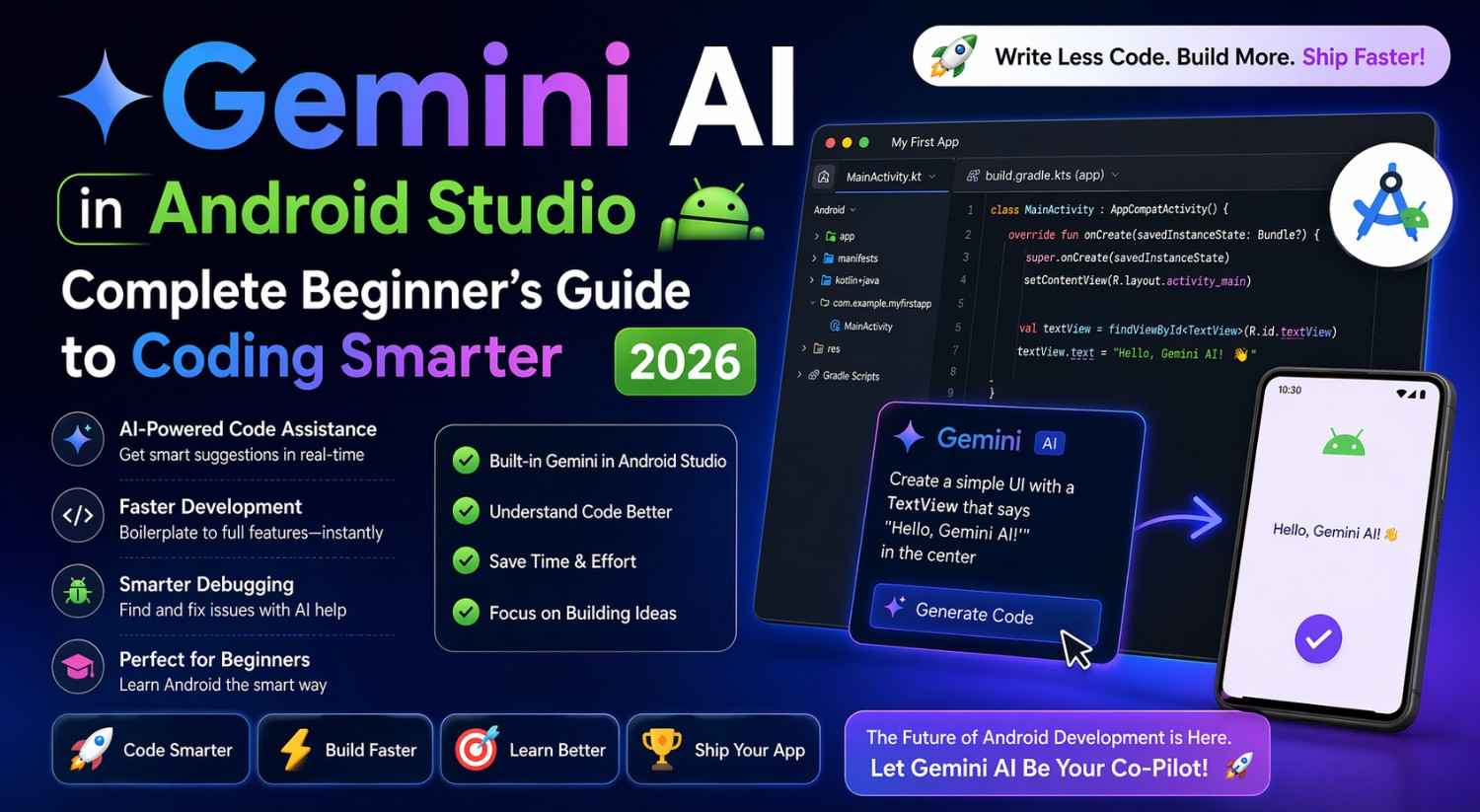
Gemini AI in Android Studio 2026: Complete Beginner’s Guide to Coding Smarter
Something genuinely interesting has happened to Android development over the last couple of years. The barrier for complete beginners has dropped — not because the concepts got simpler, but because there’s now an intelligent assistant built directly into the IDE. Gemini AI in Android Studio can explain code, suggest implementations, and help you understand errors in plain language, right when you need it.
It’s not magic. It makes mistakes, sometimes generates code that needs fixing, and it absolutely cannot replace understanding what you’re actually building. But used thoughtfully, Gemini AI in Android Studio can accelerate a beginner’s first few weeks in ways that simply weren’t possible before.
This guide shows you exactly how to use it practically — not as a shortcut that bypasses learning, but as a patient, always-available assistant that helps you learn faster and build smarter.
Setting Up Gemini AI in Android Studio
Before anything else, Gemini needs to be activated. Open Android Studio and look for the Gemini icon — it appears in the right sidebar, or you can go to Tools → Gemini.
You’ll be prompted to sign in with a Google account. A free Google account gives you access to Gemini’s core features inside the IDE. Sign in, accept the terms, and the Gemini chat panel opens on the right side of your screen.
Keep this panel open while you work. You’ll be coming back to it constantly during your first few projects.
Starting a New Project With Gemini’s Help
Create a new project in Android Studio — Empty Activity, Kotlin, API 24 minimum. Once Gradle sync finishes, you have a blank Compose project with a default “Hello Android!” screen.
Now, instead of staring at an empty file wondering what to write next, open Gemini AI in Android Studio and describe what you want to build. Be specific about it.
Example prompt: “I’m a beginner building my first Android app. I want to create a simple notes app where users can type a note, tap a button to save it, and see all saved notes in a list below. Can you show me the Kotlin code for the main screen using Jetpack Compose?”
Gemini will generate a Composable function with the structure you asked for. It’ll include a TextField for input, a Button to save, and a LazyColumn to display the list.
Don’t Just Copy — Read and Ask
Here’s the important part: don’t just copy the generated code. Read it first. Then ask Gemini to explain the parts you don’t understand.
Follow-up prompt: “Can you explain what remember { mutableStateOf("") } does in this code? I don’t understand why it’s needed.”
Gemini will explain that remember keeps state alive across recompositions, and mutableStateOf creates observable state that triggers UI updates when it changes. That explanation — delivered in plain language, in context, at exactly the moment you need it — is where real learning happens.
Using Gemini AI in Android Studio to Understand Existing Code
One of the most immediately useful features of Gemini AI in Android Studio requires almost no typing. Select any block of code in the editor, right-click, and choose Gemini → Explain this code.
Try it on the default template that comes with every new project. Select the entire MainActivity class and ask for an explanation. Gemini will walk through each part — what ComponentActivity is, why setContent replaces the old setContentView, what MyAppTheme does, and how the @Preview annotation works.
For a beginner, this transforms unfamiliar code from a wall of confusing symbols into something readable and understandable. Use it on any code that confuses you — generated code, tutorial code, or even code you wrote three days ago and can no longer remember.
Getting Help With Specific Features
As you build your first app, you’ll constantly hit moments where you know what you want to do but don’t know the Compose API or pattern to actually do it. Gemini AI in Android Studio handles these questions really well.
Some real examples:
“How do I make a button disabled until the user has typed something in the TextField?” Gemini shows you that Compose buttons have an enabled parameter — you can pass something like enabled = textInput.isNotBlank() to control it dynamically.
“How do I change the background color of a Card in Compose?” Gemini shows you Card(colors = CardDefaults.cardColors(containerColor = Color.LightGray)).
“How do I navigate from my main screen to a detail screen when a list item is tapped?” Gemini walks you through adding the Navigation Compose dependency, setting up a NavHost, defining routes, and using navController.navigate() on item click.
These are exactly the questions you’d previously have to Google, sift through Stack Overflow, check the official docs, and piece together yourself. Gemini AI in Android Studio consolidates all of that into one direct, context-aware answer — using the same patterns as your existing code.
For deeper reading on Navigation Compose, the official Android developer documentation is worth bookmarking alongside Gemini.
Using Gemini AI in Android Studio for Error Resolution
Errors are inevitable. For beginners, they’re often the most demoralizing part of the whole process. An error like “@Composable invocations can only happen from the context of a @Composable function” is completely cryptic the first time you see it.
When you hit an error in the Build panel or Logcat, paste it directly into the Gemini AI in Android Studio chat panel.
Example prompt: “I’m getting this error: ‘None of the following candidates is applicable because of receiver type mismatch.’ What does this mean and how do I fix it?”
Gemini will explain the error in plain language and suggest a specific fix. More importantly, it explains why the error occurred — not just how to make it disappear. That understanding is what stops you from making the same mistake a week later.
One important habit: after Gemini suggests a fix, don’t just apply it blindly. Read what changed and understand why. If you apply fixes without understanding them, you accumulate code you can’t debug when the next problem shows up.
Asking Gemini to Review Your Code
Once you’ve written a working feature, Gemini AI in Android Studio can act as a basic code reviewer — pointing out improvements you might not even know to look for as a beginner.
Select your ViewModel or main Composable, open the Gemini panel, and ask:
Prompt: “Can you review this code and suggest improvements for a beginner Android developer? I’m particularly interested in whether I’m handling state correctly.”
Gemini might point out that you’re holding state in the Composable that should live in a ViewModel, or that you’re calling a suspend function incorrectly, or that a val should replace a var somewhere. These are exactly the kinds of things a senior developer would catch in a code review — and now a beginner working alone can access that same feedback on demand.
What Gemini Gets Wrong (And How to Catch It)
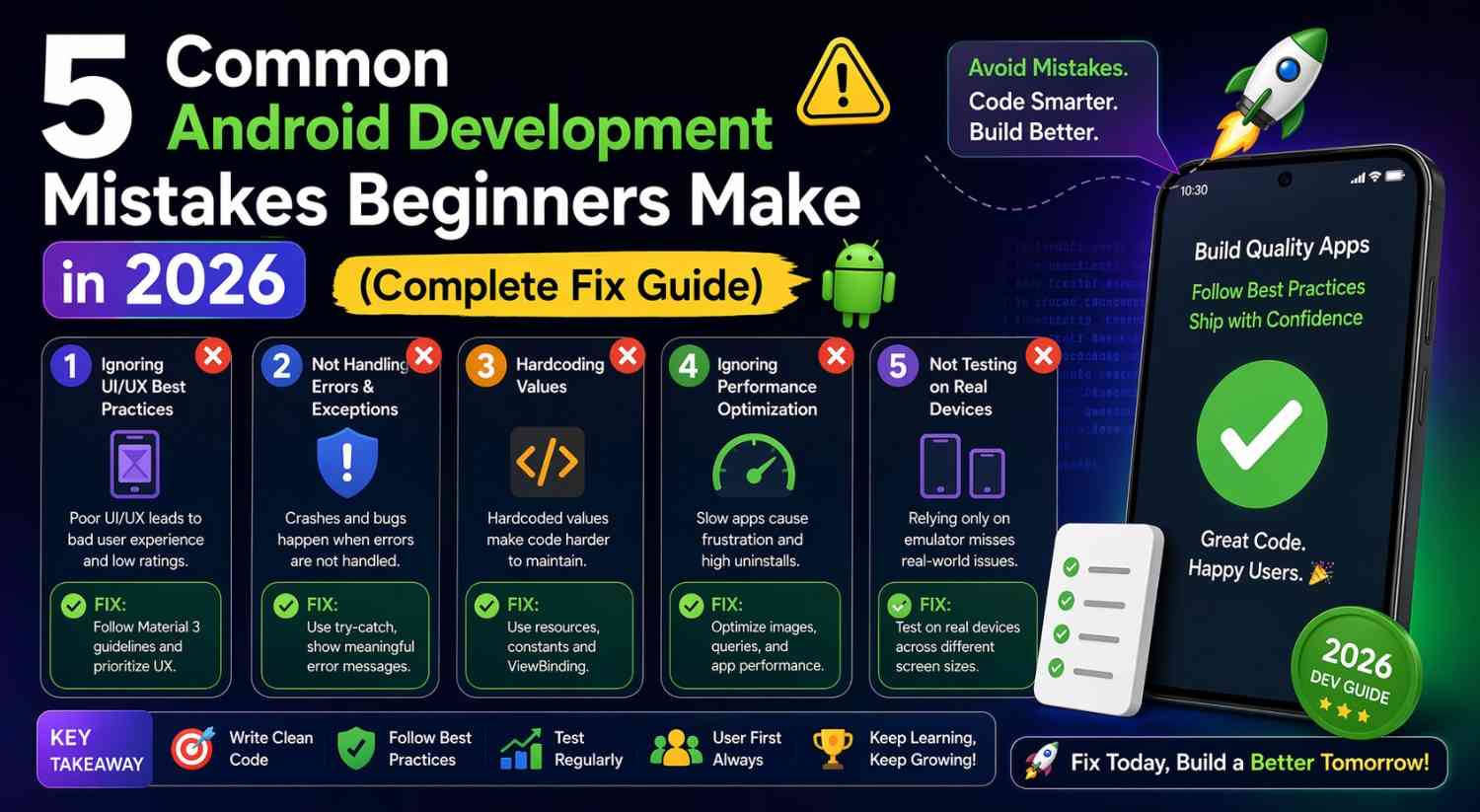
Being honest about limitations matters here. Gemini AI in Android Studio makes mistakes, and beginners are especially at risk of trusting generated code that has subtle problems.
Common Issues to Watch For
Exposed MutableStateFlow: Generated ViewModels sometimes expose MutableStateFlow as a public property instead of the read-only StateFlow. This breaks encapsulation — any class can directly modify the state. Always expose .asStateFlow() publicly.
Outdated Navigation Code: Navigation code sometimes uses deprecated APIs from older Compose Navigation versions. If navigation code generates warnings or won’t compile, check the official Compose Navigation docs for the current correct approach.
Room Database Errors: Database code sometimes has missing annotations or incorrect relationship declarations. Always run the app and check for Runtime exceptions related to Room if Gemini generated your database layer.
The most reliable way to catch all of these issues is running your app frequently. Don’t wait until you’ve accepted twenty suggestions before testing. Run after every significant change.
Building Good Habits While Using Gemini AI in Android Studio
The real risk with any AI coding assistant is passivity — accepting generated code without thinking, building something you don’t actually understand, and then being completely lost when it breaks. These habits help prevent that.
Type the code yourself. Even when Gemini generates a perfect answer, type it into the editor rather than copy-pasting. Typing forces you to read every character and builds real familiarity with the syntax.
Ask “why” not just “how.” After getting a solution, ask Gemini why that approach was chosen. Why StateFlow instead of LiveData? Why LazyColumn instead of a regular Column with a loop? These explanations build conceptual understanding that transfers to new situations.
Write your attempt first. Try to implement the feature yourself first, then ask Gemini if there’s a better way. Comparing your approach to Gemini’s teaches you more than seeing Gemini’s approach with no context at all.
You might also find it useful to pair this workflow with Android’s official architecture guide, which gives you a solid foundation for the patterns Gemini will keep referencing.
Final Conclusion
Gemini AI in Android Studio is a genuinely valuable tool for beginners — not because it writes your app for you, but because it makes the learning process more interactive and far less isolating. Code explanations, feature help, error resolution, and basic code review are all available on demand, in context, without ever leaving the IDE.
Use it as a teacher and a sounding board, not as an autopilot. Ask questions, read the answers, type the code yourself, and keep running your app after every change. The goal isn’t an app that Gemini built — it’s an app you built with Gemini’s help, that you fully understand, can maintain, and can debug on your own.
That understanding is what makes you a developer. Gemini AI in Android Studio just helps you get there a little faster.


Post Comment