Mukesh@gmail.com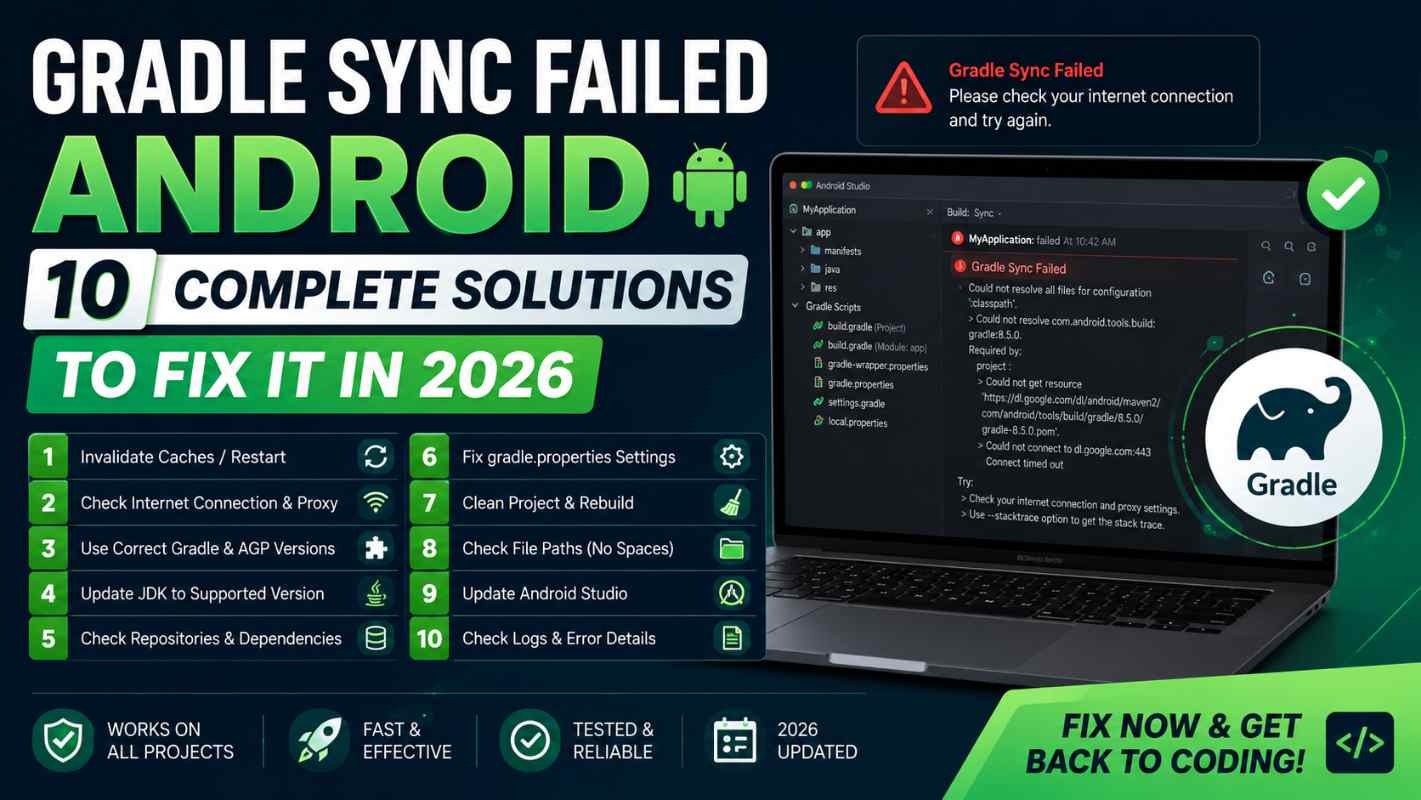
There are few things more frustrating in Android development than opening a project and being greeted with “Gradle sync failed Android” before you’ve written a single line of code. The error messages are often cryptic, the stack traces are long, and if you’re a beginner, it’s hard to even know where to start looking.
The good news is that most Gradle sync failed Android errors come from a small set of common causes. Work through these ten solutions systematically and you’ll resolve the problem in the vast majority of cases — without needing to reinstall Android Studio or start your project from scratch.
What Gradle Sync Actually Does and Why It Fails
When you open an Android project, Android Studio runs Gradle to download dependencies, configure build settings, and prepare everything for compilation. Think of it like a setup checklist that runs automatically every time you open or modify a project.
If anything in that checklist fails — a dependency can’t be downloaded, two library versions conflict, a configuration file has a syntax error — the entire sync fails and you see the dreaded Gradle sync failed Android message. You can’t build or run your app until it’s resolved.
The error messages appear in the Build panel at the bottom of Android Studio. Here’s something important: always read the actual error text, not just the “Gradle sync failed” headline. The specific message usually points directly at the cause. Look for lines beginning with > — those are the root cause messages, not just the symptoms.
Solution 1 – Check Your Internet Connection First
This sounds almost too obvious to mention. But a lost or unstable internet connection is genuinely the cause of Gradle sync failed Android errors more often than developers admit — especially for beginners.
Gradle downloads dependencies from remote repositories — Maven Central, Google’s Maven repository, and others. If your internet is unavailable, unstable, or being throttled, those downloads fail silently and sync fails with confusing error messages.
Open a browser and load any website. If that works, try the sync again. If you’re on a corporate or university network, a firewall might be blocking Gradle’s specific repository URLs. Switching to a mobile hotspot temporarily is the quickest way to test this — if Gradle sync failed Android resolves on the hotspot, your network configuration is the problem.
Solution 2 – Invalidate Caches and Restart
Android Studio caches a significant amount of project data to speed up subsequent loads. Sometimes that cache gets corrupted or becomes inconsistent — especially after an Android Studio update or an unexpected shutdown mid-sync.
Go to File → Invalidate Caches / Restart. In the dialog that appears, click Invalidate and Restart. Android Studio clears its internal caches and restarts completely fresh.
After it reopens, let the sync run again from scratch. This single step fixes a surprisingly large number of mysterious Gradle sync failed Android errors that have no obvious cause in the error output. It should be the second thing you try after checking your internet connection.
Solution 3 – Update the Gradle Wrapper Version
Your project uses a specific version of Gradle, defined in gradle/wrapper/gradle-wrapper.properties. Open that file and you’ll see a line like:
distributionUrl=https\://services.gradle.org/distributions/gradle-8.7-bin.zipIf this version is outdated or incompatible with your current Android Studio or Android Gradle Plugin version, you’ll see Gradle sync failed Android errors immediately. Android Studio often shows a yellow banner in this file saying “Gradle version X.X is available” — click Update when you see it.
If you don’t see the banner, check the Android Gradle plugin release notes for the Gradle version recommended for your AGP version. Update the version number in the distributionUrl line manually and sync again.
Solution 4 – Fix Android Gradle Plugin and Kotlin Version Mismatch
The Android Gradle Plugin version and your Kotlin version must be compatible with each other. When they’re not, Gradle sync failed Android errors appear with messages that can seem completely unrelated to version numbers.
Open your project-level build.gradle.kts and look at the plugins block:
kotlin
plugins {
    id("com.android.application") version "8.5.0" apply false
    id("org.jetbrains.kotlin.android") version "2.0.0" apply false
}
Google publishes a compatibility table showing which AGP versions work with which Kotlin versions. If your combination isn’t on that table, update one or both to a compatible pairing. This is one of the most common causes of Gradle sync failed Android errors after manually updating a dependency version.
Solution 5 – Look for Typos in build.gradle Files
A single syntax error — a missing closing parenthesis, an extra comma, a misquoted dependency string — breaks the entire Gradle build file and triggers a Gradle sync failed Android error immediately.
Android Studio underlines these in red, but the error can sometimes appear on a different line than the actual mistake. If you recently edited any build.gradle.kts or build.gradle file, go back and compare your changes carefully. The error message in the Build panel usually includes a line number — go directly to that line first.
Pay special attention to dependency strings, which are easy to mistype:
kotlin
// Wrong — missing closing quote and parenthesis
implementation("androidx.core:core-ktx:1.13.0

// Correct
implementation("androidx.core:core-ktx:1.13.0")
If you’re not sure what you changed recently, use Git diff to see exactly what’s different from the last working state of your project.
Solution 6 – Clear the Gradle Cache Manually
The Gradle cache lives on your disk and stores downloaded dependencies and build artifacts. When files in this cache become corrupted or incomplete — which can happen after a failed download or an interrupted sync — Gradle keeps trying to use the bad cached files and the Gradle sync failed Android error repeats every time.
Delete the cache manually from these locations:
- Windows:
C:\Users\YourName\.gradle\caches - Mac/Linux:
~/.gradle/caches
Delete the entire caches folder inside .gradle — not the whole .gradle directory, just the caches subfolder. The next sync will take longer as everything re-downloads, but corrupted cache entries can no longer cause the Gradle sync failed Android problem once they’re gone.
This solution is particularly effective for errors that say “Could not resolve” even though the dependency definitely exists in the repository.
Solution 7 – Fix Dependency Version Conflicts
When two libraries in your project depend on different versions of the same third-party library, Gradle sometimes can’t decide which version to use and triggers a Gradle sync failed Android error.
Look for error messages containing phrases like “Could not resolve,” “version conflict,” or “dependency resolution failed.” In your app-level build.gradle.kts, you can force a specific version to resolve the conflict:
kotlin
configurations.all {
    resolutionStrategy {
        force("com.squareup.okhttp3:okhttp:4.12.0")
    }
}
```

A better long-term solution is using Bill of Materials (BOM) dependencies wherever available. The Compose BOM, the Firebase BOM, and the Kotlin BOM pre-align compatible versions so conflicts like this don't cause **Gradle sync failed Android** errors in the first place.

---

## Solution 8 — Check the JDK Version Setting

Android Studio uses a JDK to run Gradle builds. If the JDK version doesn't meet the requirements of your Gradle version, you'll see **Gradle sync failed Android** errors — often with messages mentioning "unsupported class file major version" or similar JVM-level descriptions.

Go to **File → Project Structure → SDK Location** and look at the Gradle JDK setting. The correct setting in Android Studio is almost always **Android Studio default JDK** — the bundled JDK that Google packages with Android Studio specifically.
```
File → Project Structure → SDK Location → Gradle JDK → Android Studio default JDK
If someone previously changed this to an external JDK — perhaps an older system Java installation — switching it back to the bundled default resolves the Gradle sync failed Android issue immediately. The bundled JDK is always compatible with the Android Studio version you’re running.
Solution 9 – Verify Repository Configuration
If Gradle can’t find a dependency because the repository hosting it isn’t configured, you’ll see Gradle sync failed Android errors with “Could not find” messages listing the dependency name and version.
Open your settings.gradle.kts and check the repositories block inside dependencyResolutionManagement:
kotlin
dependencyResolutionManagement {
    repositoriesMode.set(RepositoriesMode.FAIL_ON_PROJECT_REPOS)
    repositories {
        google()
        mavenCentral()
    }
}
Both google() and mavenCentral() should always be present. google() hosts all Android Jetpack and Google Play libraries. mavenCentral() hosts most other open-source libraries. If either is missing, any library from that repository will fail to resolve and trigger a Gradle sync failed Android error.
If you’re using a private or company-hosted repository, verify the URL is correct and your credentials — if required — are properly configured in your local.properties or Gradle configuration.
Solution 10 – Re-import the Project as a Last Resort
If none of the above solutions fix your Gradle sync failed Android problem, the project’s IDE-level configuration files may have become corrupted. These are the .idea folder and .iml files — they’re generated by Android Studio and not part of your actual source code.
Close the project in Android Studio. Navigate to your project folder on disk. Delete the .idea folder and any files ending in .iml. Then reopen the project in Android Studio.
Android Studio regenerates all of these files from scratch during the new import, which clears any IDE-level configuration drift causing the Gradle sync failed Android failure. Your source code, build.gradle files, and src directory are completely untouched.
If this still doesn’t resolve things, creating a fresh project with the same configuration and copying your source files across is the absolute final option — and it always works.
Reading Gradle Error Messages Like a Developer
One skill that makes fixing Gradle sync failed Android errors much faster is knowing how to read Gradle’s error output properly. The Build panel shows a lot of text, and it’s easy to focus on the wrong part.
The actual cause of the failure is almost always near the bottom of the error output, not at the top. The top shows where the failure was detected in the build process. The bottom — the lines starting with > — shows what specifically went wrong.
Common patterns and what they mean in Gradle sync failed Android situations:
> Could not resolve com.example:library:2.0.0— dependency download problem, check internet or repository config (Solution 1 or 9)> Unresolved reference: SomeClass— Kotlin compilation error, check imports and dependencies (Solution 4 or 5)> Plugin with id 'com.example.plugin' not found— plugin repository issue or incorrect plugin version (Solution 3 or 9)> The supplied javaHome seems to be invalid— JDK configuration problem (Solution 8)
Getting comfortable reading these messages means you can skip directly to the relevant solution rather than working through all ten every time you see Gradle sync failed Android.
Preventing Future Gradle Sync Failures
A few habits that keep Gradle sync failed Android problems from becoming a recurring issue on your projects.
Use version catalogs. Android Studio supports a libs.versions.toml file for centralized dependency version management. Keeping all versions in one place makes compatibility management much easier and reduces accidental mismatches that cause sync failures.
Don’t edit Gradle files while sync is running. It’s easy to do accidentally. Let sync complete before making changes to any build.gradle file.
Update Android Studio and Gradle together. When you update Android Studio, check if the recommended Gradle version has also changed. Keeping them synchronized prevents the version mismatch failures covered in Solutions 3 and 4.
Commit gradle-wrapper.properties to version control. This ensures everyone on a team uses the same Gradle version and avoids Gradle sync failed Android errors caused by version differences between machines.
For a complete reference on Gradle configuration in Android projects, the official Android Gradle build documentation covers every configuration option in detail. And for teams managing complex dependency trees, the Gradle dependency management guide explains resolution strategies and BOMs thoroughly.
If you’re also setting up your project structure for the first time, our Android SDK path complete guide ensures your SDK is correctly configured before Gradle runs. And for teams working on multi-module projects where Gradle sync failed Android errors are more complex, our Android modular architecture guide covers module-level Gradle configuration best practices.
Final Conclusion
Gradle sync failed Android is one of the most frequent errors in Android development, but it’s almost never a deep or permanently broken situation. The ten solutions in this guide cover the vast majority of real-world causes — from something as simple as a bad internet connection to more specific issues like JDK mismatches, corrupted caches, or dependency version conflicts.
The key habit is reading the actual error message before trying solutions randomly. Gradle’s error output tells you a great deal if you know where to look — specifically those lines starting with > near the bottom of the Build panel output.
Combine that diagnostic habit with a systematic approach — try the simplest solutions first, work toward the more involved ones — and most Gradle sync failed Android failures resolve within ten or fifteen minutes. Every Android developer has fought Gradle at some point. Understanding how to fix it calmly and methodically is a real skill, and one that becomes significantly easier each time you work through it.