Mukesh@gmail.com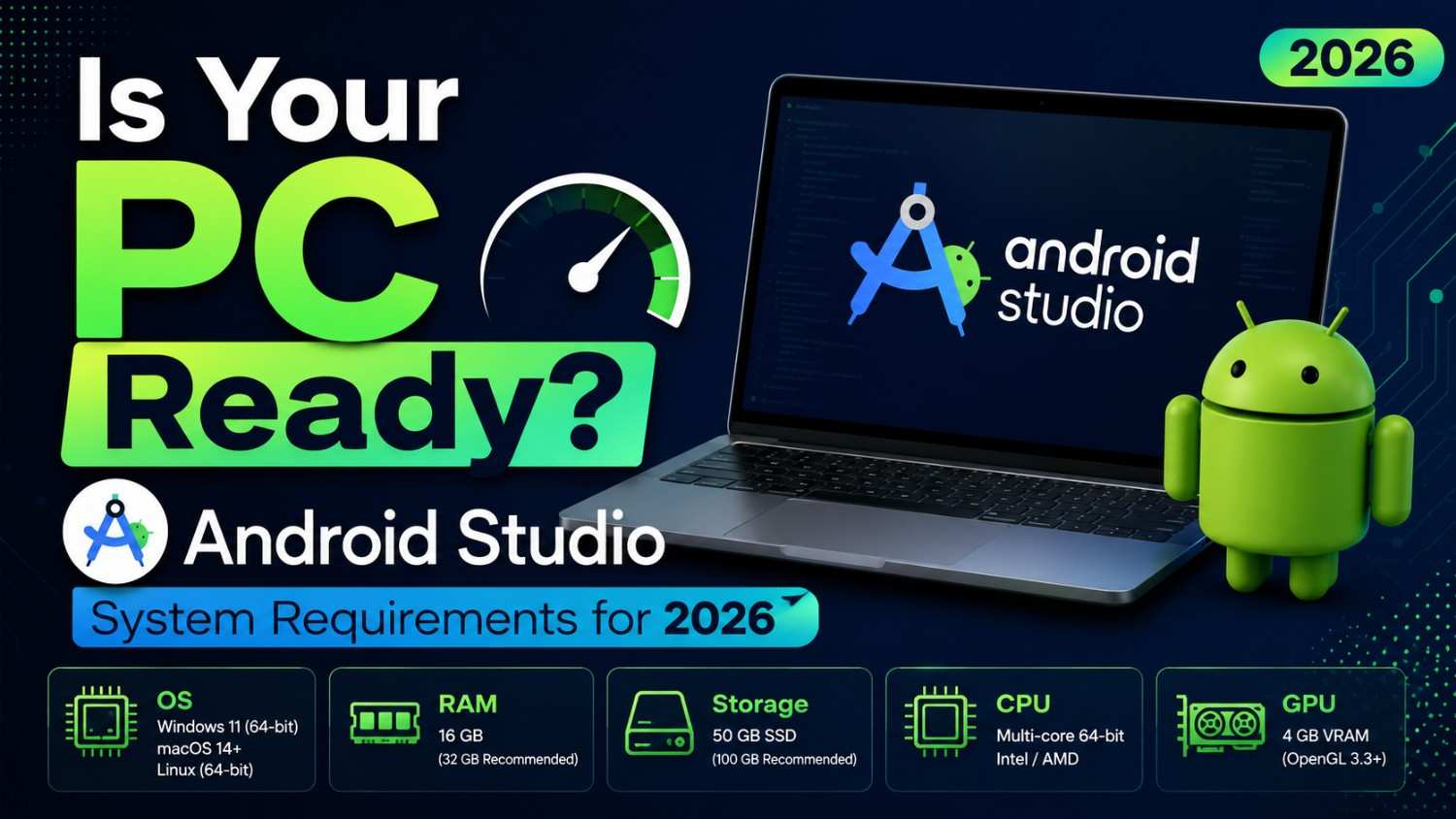
If you’ve been thinking about learning Android app development, the very first thing you need to check before downloading anything — is whether your computer actually meets the Android Studio system requirements. A lot of beginners skip this step and then spend hours troubleshooting a slow, freezing IDE that barely opens a project.
I’ve seen this happen too many times. Someone gets excited, downloads Android Studio, tries to run it on a 4GB RAM laptop from 2015, and within ten minutes they’re frustrated and ready to quit. The good news is, you can avoid all of that just by spending five minutes checking your hardware first.
Let me walk you through everything you need to know.
Why Android Studio System Requirements Matter More in 2026
Android Studio has become significantly heavier over the years. Each major version — and 2026 is expected to bring Ladybug or a newer release — adds more built-in tools, AI coding assistants, better emulator support, and tighter integration with Jetpack Compose previews. All of that is great for developers, but it puts real pressure on your machine.
Even if you installed Android Studio two years ago and it ran fine, your current setup might struggle with newer versions. Emulators especially consume a huge chunk of RAM and CPU.
So checking Android Studio system requirements isn’t a one-time thing. It’s worth revisiting whenever you upgrade the IDE or switch devices.
Minimum vs Recommended: Know the Difference
Google officially provides two tiers of Android Studio system requirements — minimum and recommended. A lot of guides just list the minimum specs and call it a day. That’s not very helpful, honestly.
The minimum specs are what you need to install and open Android Studio. The recommended specs are what you need to actually use it comfortably — run the emulator, build projects, and not want to throw your laptop out a window.
Here’s a practical breakdown for 2026:
Minimum Android Studio System Requirements
- OS: Windows 10 (64-bit), macOS 10.14 or later, Linux with glibc 2.31+
- RAM: 8 GB minimum
- Disk Space: 8 GB (IDE + Android SDK + emulator images)
- Screen Resolution: 1280 x 800
- Java Development Kit: JDK 17 (bundled with Android Studio)
Recommended Android Studio System Requirements
- OS: Windows 11, macOS 13+, or modern Ubuntu/Fedora
- RAM: 16 GB or more
- Disk Space: 16 GB SSD (SSD is strongly preferred over HDD)
- Processor: Intel Core i5/i7 (8th gen+) or Apple M-series chip
- Screen Resolution: 1920 x 1080 or higher
- GPU: Any modern GPU with OpenGL 3.3 support for emulator acceleration
If you’re buying a new laptop specifically for Android development in 2026, aim for the recommended tier — not the minimum.
RAM: The Most Common Bottleneck
Let’s talk about RAM because this is where most people struggle. Android Studio system requirements list 8 GB as the minimum, but in real use, Android Studio alone can consume 2–3 GB of RAM while idle. Add a running emulator, and you’re looking at another 2–4 GB on top of that.
On a machine with 8 GB total, that leaves almost nothing for your operating system, Chrome tabs, or other tools. Your PC will start swapping to disk, and everything slows to a crawl.
If you have 16 GB RAM, you’ll have a noticeably smoother experience. Projects load faster, the emulator stays responsive, and Gradle builds don’t freeze your whole system.
Practical tip: If you’re on 8 GB and can’t upgrade right now, consider using a physical Android device for testing instead of the emulator. It saves a ton of memory.
Processor and Architecture: ARM vs x86 in 2026
This is something that didn’t matter as much a few years ago, but in 2026 it’s worth paying attention to.
If you’re on an Apple Silicon Mac (M1, M2, M3, or newer), congratulations — Android Studio runs exceptionally well on these chips. The ARM-native builds are optimized, and the emulator performance is miles ahead of older Intel Macs.
On Windows, the recommended processor for meeting Android Studio system requirements is an Intel or AMD 64-bit chip with virtualization support. You’ll need to enable Intel VT-x or AMD-V in your BIOS settings for the emulator to work at full speed. Without hardware virtualization enabled, the emulator will be painfully slow — or won’t run at all.
To check if virtualization is enabled on Windows, open Task Manager, go to the Performance tab, and look for “Virtualization: Enabled” under the CPU section.
Storage: SSD Is Not Optional Anymore
Older guides would say “HDD is fine, just slower.” In 2026, I’d push back on that. Android Studio, the SDK, emulator system images, and your projects combined can easily fill 20–30 GB. On a traditional hard drive, that much data means long build times, slow project indexing, and delayed Gradle syncs.
An SSD — even a budget SATA SSD — makes a dramatic difference. If you’re meeting every other Android Studio system requirement but running it on an HDD, storage is likely your biggest performance problem.
Google itself recommends at least 8 GB of free disk space as a baseline, but realistically you should have at least 20–25 GB available. Download one or two emulator images and you’ll see why.
Operating System Compatibility in 2026
Windows Users
Windows 10 (64-bit) is still supported, but Windows 11 is the better option now. The newer OS handles memory management and background tasks more efficiently, which indirectly helps Android Studio performance. If you’re still on Windows 10, you should be fine — just make sure it’s fully updated.
macOS Users
macOS 10.14 Mojave is the stated minimum, but in practice you’ll want macOS 12 Ventura or later for the best compatibility with current Android Studio builds. Apple Silicon Macs running macOS 13+ are currently some of the best machines for Android development available.
Linux Users
Linux is fully supported and often preferred by experienced developers. Ubuntu 20.04 LTS or later works well. Just ensure you have the required 64-bit glibc version and the necessary graphics libraries for emulator rendering.
Can a Chromebook Run Android Studio?
This comes up fairly often. The short answer: technically yes, but only if your Chromebook supports Linux (Crostini) and has decent specs — at least 8 GB RAM and an Intel or AMD processor. Most budget Chromebooks won’t meet the Android Studio system requirements well enough for a comfortable experience.
If you have a high-end Chromebook with Linux support, it can work for learning and small projects. For serious development, though, a dedicated Windows, Mac, or Linux machine is a better bet. You can read more about setting up a Linux development environment on ChromeOS if you want to explore this path.
How to Check Your Current PC Specs
Before downloading anything, take two minutes to verify your system.
On Windows:
- Press
Windows + I→ System → About (for RAM and processor) - Open File Explorer → This PC (for available disk space)
On macOS:
- Click the Apple menu → About This Mac
On Linux:
- Run
free -hin terminal for RAM,lscpufor processor info
Once you’ve confirmed your specs match the Android Studio system requirements, you can head to the official Android Studio download page and grab the right version for your OS. That’s also where Google maintains the most up-to-date requirements documentation.
A Few Things Beginners Often Overlook
One thing that doesn’t get mentioned enough: even if your PC technically meets the Android Studio system requirements, a cluttered system with 50 startup apps and low disk space will still feel sluggish. Clean up your startup programs, keep at least 20% of your drive free, and close unnecessary apps before launching Android Studio.
Also — and this is important — make sure your graphics drivers are current. The emulator uses GPU acceleration for rendering, and outdated drivers can cause crashes and display glitches that have nothing to do with Android Studio itself.
For those wanting to go deeper on performance tuning, exploring how Android emulator settings affect performance is a solid next step after getting your environment set up.
Final Conclusion
Getting your PC ready for Android Studio in 2026 isn’t complicated, but it does require a bit of honest evaluation. The Android Studio system requirements have grown with the IDE, and knowing the difference between minimum and recommended specs can save you a lot of frustration early on.
To summarize without repeating everything: aim for 16 GB RAM, use an SSD, keep virtualization enabled, and pick an OS that’s current and well-supported. If your machine hits those marks, you’re in good shape to start building Android apps without your PC becoming the obstacle.
Start small, check your specs, and set up your development environment properly from day one. Future-you will appreciate it.