Mukesh@gmail.com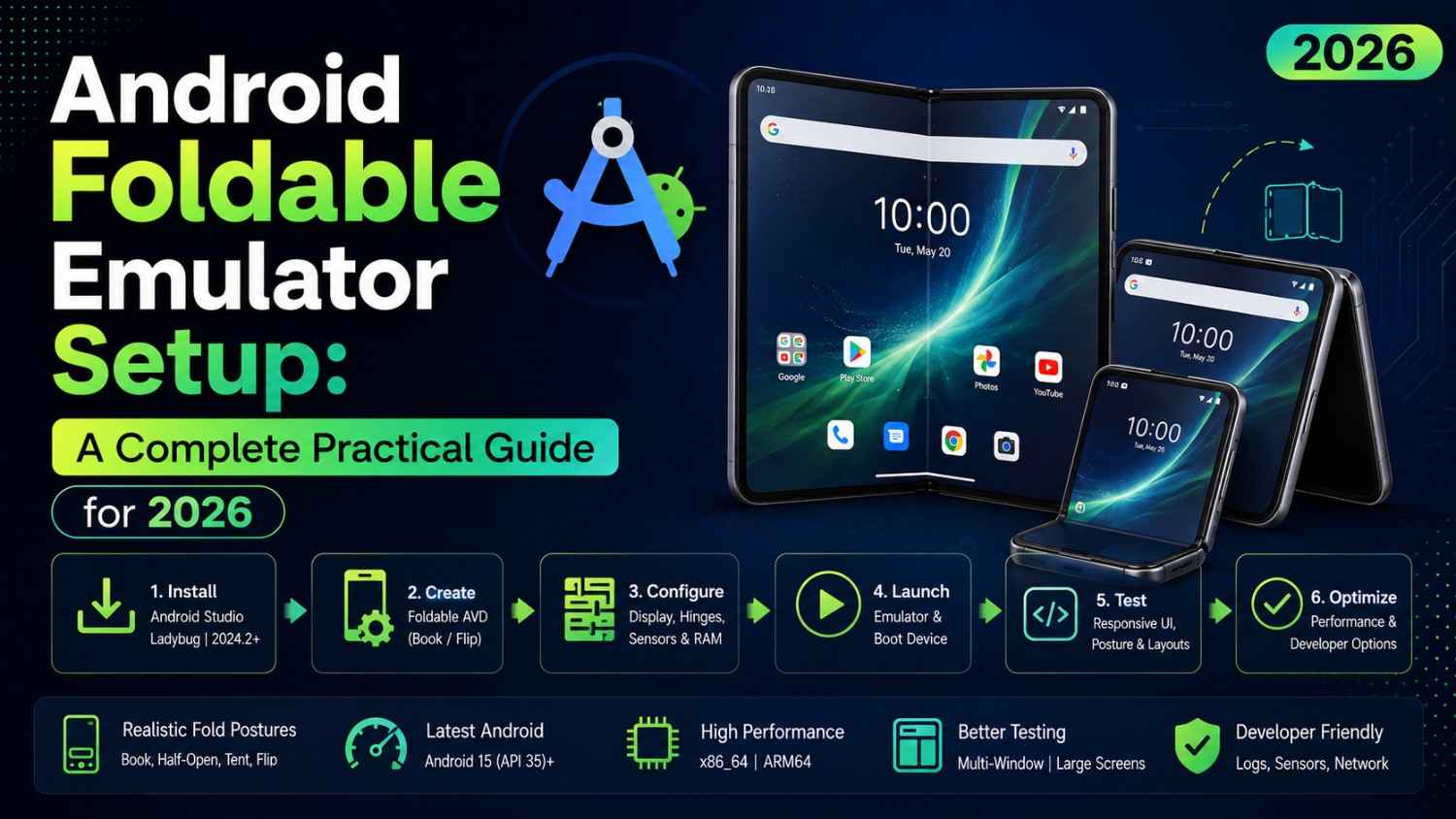
Foldable phones are no longer a niche product. In 2026, multiple major manufacturers — Samsung, Google, Motorola, OnePlus — offer foldable devices, and the Android platform has first-class support for them. Tablets are also making a genuine comeback, driven by productivity use cases and significantly better Android optimization.
If you’re building Android apps without testing on foldable and large screen configurations, you’re shipping apps that may look and behave poorly on a significant and growing portion of devices. Proper Android foldable emulator setup in Android Studio makes it possible to test these form factors without owning the physical hardware — and this guide walks through everything you need to do it correctly.
Why Foldable and Large Screen Testing Matters
An app that looks perfectly fine on a standard phone can look completely broken on a foldable or tablet. Common issues that appear without proper Android foldable emulator setup include text and UI elements stretched awkwardly to fill a wider screen, navigation that doesn’t adapt to the larger layout area, apps that don’t handle the fold/unfold transition gracefully, and dialogs or bottom sheets that appear unnecessarily small in the center of a large display.
Keyboard and pointer input that wasn’t designed for desktop-style interactions is another frequent issue that only appears on larger form factors.
Google’s large screen quality guidelines explicitly call out these problems and rate app quality on them. Getting this right isn’t just about polish — it increasingly affects app discoverability in the Play Store. That alone makes Android foldable emulator setup a necessary part of any serious development workflow.
Creating a Foldable Emulator in Android Studio
Open the Device Manager in Android Studio. You’ll find it under Tools → Device Manager or by clicking the device icon in the toolbar.
Click Create Device or the “+” icon. In the device category list on the left, look for Phone or Tablet — but for foldables specifically, scroll through the hardware profiles until you see entries like these:
- 7.6″ Fold-in with outer display — the primary foldable profile, modeled on fold-style devices
- Galaxy Z Fold5 — a manufacturer-specific profile (may require downloading)
- Pixel Fold — Google’s own foldable profile
For the most universally applicable Android foldable emulator setup, select 7.6″ Fold-in with outer display and click Next.
On the system image selection screen, choose a recent API level — API 34 or 35 for 2026 development. Download the image if it isn’t already on your system (this takes a few minutes depending on your connection). Select it and click Next.
Give the emulator a descriptive name on the final configuration screen and click Finish. Your Android foldable emulator setup is now complete and the device is available in your device selector.
Understanding the Foldable Emulator Controls
When you launch your foldable emulator after completing the Android foldable emulator setup, it opens in the unfolded (tablet-like) state by default. The extended controls panel — the three-dot menu on the emulator’s toolbar — has a special section specifically for foldable devices.
The Fold button toggles the device between folded (phone-like, using the outer display) and unfolded (full tablet-size inner display) states. Testing your app through this transition is critical — this is where most foldable-specific bugs appear in real usage.
Your app should handle the fold/unfold gracefully without crashing or losing state. In modern Compose apps, this usually works automatically if you’re not holding onto configuration-sensitive objects incorrectly. But always verify it manually — unfold the device while your app is running mid-interaction and confirm the UI adapts appropriately. That verification is the entire point of a proper Android foldable emulator setup.
Setting Up a Tablet Emulator
For large screen testing without the foldable complexity, standard tablet emulators are simpler and faster to work with alongside your Android foldable emulator setup.
In Device Manager, create a new device and select the Tablet category. Useful profiles include:
- Pixel Tablet — Google’s own tablet form factor representing an actual shipping product
- 10.1″ WXGA (Tablet) — a generic large tablet profile for broad testing
- 13.5″ Freeform — useful for testing desktop windowing scenarios
The Pixel Tablet profile is recommended as your primary large screen test device because it represents actual shipping hardware with known, documented behavior. Running it alongside your Android foldable emulator setup gives you comprehensive coverage of the large screen ecosystem.
Enabling Multi-Window and Split-Screen Testing
One of the most important large screen behaviors to test — and one that’s easy to miss without proper Android foldable emulator setup — is multi-window support. Apps running side by side or in split-screen mode is a common and expected use case on tablets and foldables.
On a running emulator, use the recent apps button (the square icon in the navigation bar) and drag an app into split-screen mode, then open your app in the other half. This simulates how users actually use tablets and unfolded foldable devices in daily life.
You can also enable freeform window mode for more flexible testing. In the extended controls or via ADB, freeform mode lets you resize your app window freely — similar to desktop windowing on a PC. This is the most demanding layout scenario and an excellent stress test for adaptive layouts built as part of your Android foldable emulator setup workflow.
Compose Adaptive Layouts: What to Test
If you’re using Jetpack Compose, the WindowSizeClass API is the correct tool for building adaptive layouts that respond to your Android foldable emulator setup test configurations. It classifies the current window into Compact, Medium, or Expanded size classes, and your UI adapts accordingly.
kotlin
val windowSizeClass = calculateWindowSizeClass(this)

@Composable
fun AdaptiveHomeScreen(windowSizeClass: WindowSizeClass) {
    when (windowSizeClass.widthSizeClass) {
        WindowWidthSizeClass.Compact -> PhoneLayout()
        WindowWidthSizeClass.Medium -> TabletLayout()
        WindowWidthSizeClass.Expanded -> DesktopLayout()
    }
}
```

Test each size class using your emulators from the **Android foldable emulator setup**:

- **Foldable in folded state** → Compact (phone-sized layout)
- **Foldable in unfolded state** → Medium or Expanded depending on the device model
- **Tablet emulator** → Expanded (full desktop-style layout)

Run your app on each configuration and verify that layout transitions are smooth, content is properly displayed in each size class, and no UI elements are clipped, stretched, or awkwardly positioned. This systematic testing is what makes your **Android foldable emulator setup** genuinely useful rather than just a checkbox exercise.

---

## Using the Resizable Emulator for Quick Testing

Android Studio includes a **Resizable (Experimental)** device profile specifically designed for multi-form-factor testing as part of a streamlined **Android foldable emulator setup**. This single emulator can switch between Phone, Foldable, Tablet, and Desktop modes using a dropdown in the emulator controls.
```
Device Manager → Create Device → Search "Resizable" → Select Resizable (Experimental)
This is the most efficient option for quick layout testing — one emulator, four form factors, no switching between different AVDs. The tradeoff is that it’s slightly less accurate than dedicated emulators for each form factor individually. But for day-to-day development where you need rapid feedback, the Resizable emulator is the most practical complement to your full Android foldable emulator setup.
Find it in Device Manager by searching for “Resizable” when creating a new device.
Performance Considerations for Running Foldable Emulators
Running a foldable emulator as part of your Android foldable emulator setup requires more RAM than a standard phone emulator because the screen is larger and the system image is typically more recent.
Expect a foldable emulator to use 2–3 GB of RAM during active use. If your development machine has 16 GB of RAM, you can comfortably run one emulator alongside Android Studio without performance issues. Running two simultaneous emulators — phone plus tablet, for comparison testing — requires at least 24 GB for a consistently smooth experience.
A practical workflow on machines with 16 GB: run one emulator at a time. Test on the foldable emulator from your Android foldable emulator setup, close it, then launch the tablet emulator for comparison. Slightly slower than parallel testing but entirely workable for individual developers.
For official guidance on large screen app quality requirements, the Android large screen app quality guidelines are the definitive reference. And for deeper reading on WindowSizeClass and adaptive layouts, the Compose adaptive layouts documentation covers every size class scenario with working examples.
If you’re also optimizing your app’s navigation for large screens alongside this Android foldable emulator setup work, our Android navigation component guide covers how Navigation Compose adapts across screen sizes. And for teams building tablet-specific layouts with Compose, our Jetpack Compose adaptive UI guide explains two-pane layouts and supporting panel patterns in detail.
Common Issues Found During Foldable Emulator Testing
Once your Android foldable emulator setup is complete and you start testing, certain issues appear consistently across apps that weren’t designed with large screens in mind.
Fixed-width layouts that look fine on a 360dp phone screen become awkwardly narrow on a 673dp unfolded foldable. Always use fillMaxWidth() in Compose rather than fixed width values for container elements.
Bottom navigation bars that work perfectly on phones can feel misplaced on tablets where a navigation rail or navigation drawer is the expected pattern. The WindowSizeClass check handles this when implemented correctly.
Dialogs and bottom sheets that don’t constrain their maximum width look visually broken on large displays — a 600dp wide bottom sheet on a 1200dp screen appears as a tiny strip. Always set a maxWidth constraint on dialogs in your Android foldable emulator setup testing.
State loss during fold/unfold — if your app loses its current screen state when the device is folded or unfolded, the ViewModel is likely holding a direct reference to a configuration-sensitive object. Review your ViewModel dependencies when this appears during testing.
Final Conclusion
Proper Android foldable emulator setup is not optional for apps targeting the full Android ecosystem in 2026. Android Studio provides everything you need to test foldable and large screen form factors without physical hardware — dedicated foldable profiles, tablet profiles, the resizable multi-mode emulator, and built-in multi-window testing capabilities.
Set up at least one foldable emulator and one tablet emulator as standard parts of your development environment from the beginning of a project. Test the fold/unfold transition actively, verify your layouts adapt correctly across all three WindowSizeClass values, and check multi-window behavior before every release.
These tests catch the layout issues that make apps feel unfinished on larger screens — issues that users notice immediately and mention in reviews. A complete Android foldable emulator setup takes less than thirty minutes to configure and saves hours of post-release bug fixing. Do it once, and make it a permanent part of how you develop Android apps.