Mukesh@gmail.com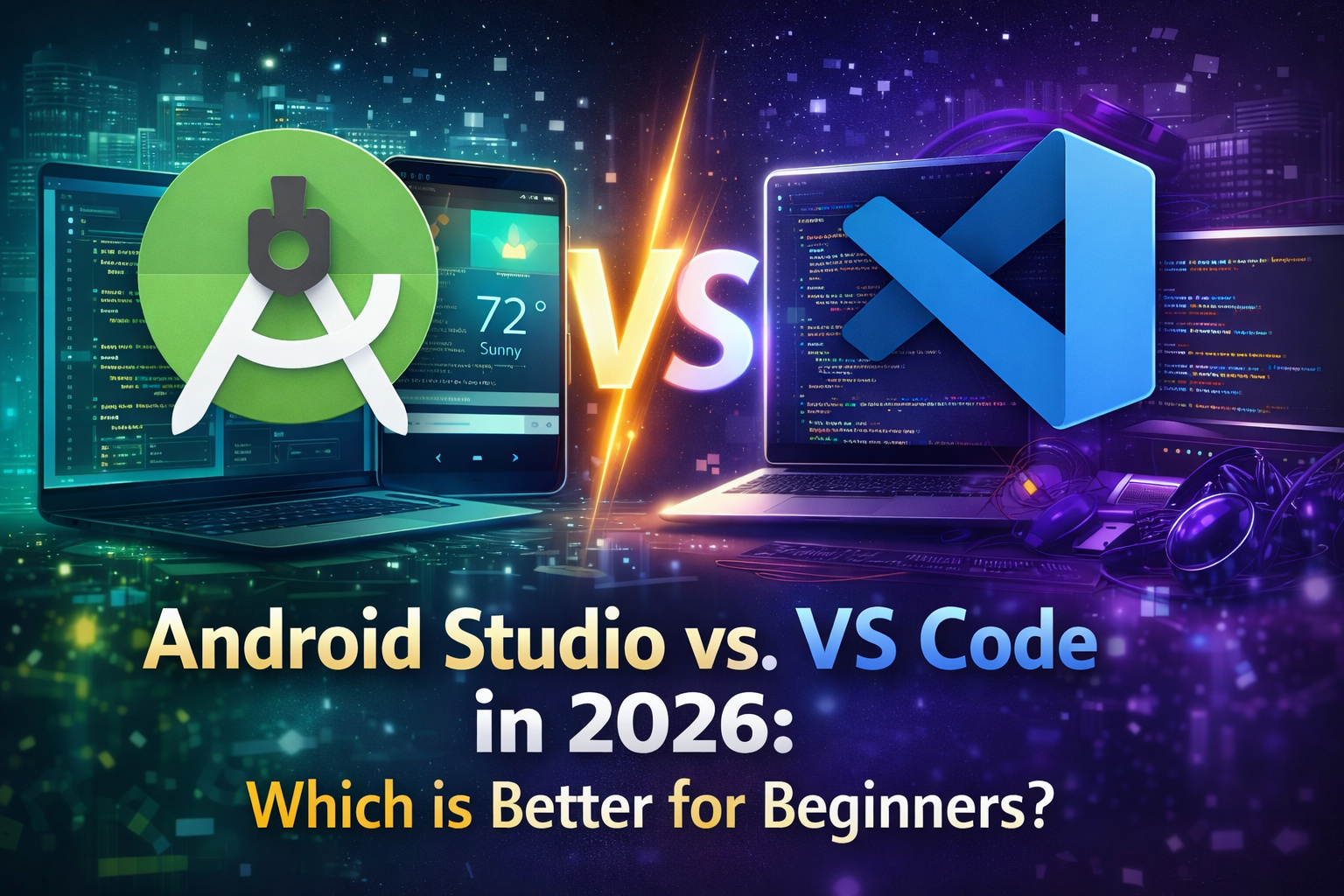
When you’re just starting Android development, one of the first questions that comes up is deceptively simple: which editor should I use? And in 2026, that question almost always comes down to Android Studio vs VS Code. Both are free. Both are popular. Both work on Windows, Mac, and Linux. So why does the choice even matter?
Because the two tools are built for fundamentally different purposes — and picking the wrong one for your situation creates friction that slows learning in ways you won’t immediately recognize. This guide gives you an honest, practical comparison of Android Studio vs VS Code based on real use, not spec sheets.
What Each Tool Actually Is
Before comparing them directly, it’s worth being clear about what you’re actually comparing.
Android Studio is a dedicated IDE — Integrated Development Environment — built specifically for Android app development. It’s made by Google, built on JetBrains’ IntelliJ IDEA platform, and designed from the ground up around the Android ecosystem. Everything in it — the layout editor, the emulator integration, the Gradle build tools, the Logcat panel — exists specifically to help you build Android apps.
VS Code is a general-purpose code editor made by Microsoft. It’s lightweight, fast, and extraordinarily flexible. Out of the box, it’s essentially a smart text editor. You extend it with plugins to support whatever language or framework you’re working in — Python, JavaScript, Flutter, Dart, and yes, to some extent, Android development as well.
That distinction — dedicated IDE vs extensible editor — is the core of the Android Studio vs VS Code debate for Android beginners.
Setup and Installation Experience
Android Studio Setup
Installing Android Studio means getting one package that includes nearly everything you need — the IDE itself, the Android SDK, an emulator, build tools, and Gemini AI assistance. The Setup Wizard walks you through downloading the SDK components on first launch. It takes 30–60 minutes depending on your internet speed, but when it’s done, you have a complete, working Android development environment.
There’s no hunting for plugins, no manual SDK path configuration, no wondering if you have the right tools installed. It just works — which matters enormously when you’re a beginner and don’t yet know what “the right setup” even looks like.
VS Code Setup for Android Development
VS Code installs in about two minutes. But getting it ready for Android development is a different story. You need to install the Android SDK separately, configure environment variables, install relevant extensions, set up your Kotlin or Java toolchain, and figure out how to connect Gradle builds to the editor.
For an experienced developer who knows exactly what they need, this is manageable. For a beginner comparing Android Studio vs VS Code for their first project, this setup process is a genuine obstacle. You can spend an hour configuring VS Code and still not have a setup that matches what Android Studio gives you in the first five minutes.
Winner for beginners: Android Studio — by a wide margin.
Android-Specific Features
This is where the Android Studio vs VS Code comparison becomes most one-sided for Android development specifically.
What Android Studio Offers Natively
Android Studio has a visual layout editor for Compose previews, letting you see your UI update in real time without running the app. It has a dedicated Device Manager for creating and managing emulators. Logcat — the Android log viewer — is built directly into the IDE. Gradle integration is deep and automatic. The APK analyzer, the memory profiler, the network inspector — all built in, all designed to work together.
When something goes wrong, Android Studio usually shows you exactly where and why — in the context of the Android project structure you’re already looking at.
What VS Code Offers for Android Development
VS Code’s Android support exists primarily through extensions — and it’s limited. There’s no native Compose preview. No built-in Device Manager. Logcat requires workarounds. Gradle builds need manual terminal commands or extension configuration.
The Kotlin extension for VS Code gives you syntax highlighting and basic completion, but it doesn’t come close to the Android-aware intelligence that Android Studio provides. The Android Studio vs VS Code gap here isn’t small — it’s significant enough to matter daily.
If you’re building a Flutter app, VS Code becomes much more competitive because Flutter’s tooling is designed to work well with it. But for native Android development with Kotlin and Jetpack Compose — which is what most beginners in 2026 should be learning — Android Studio has no real competition.
Winner for Android development features: Android Studio — not even close.
Performance and System Requirements
Android Studio Performance
Android Studio is heavy. It requires at least 8 GB RAM and genuinely runs better with 16 GB. On older or lower-spec machines, it can feel sluggish — especially during Gradle builds and when the emulator is running simultaneously. This is the most legitimate criticism of Android Studio, and it’s worth taking seriously.
The IDE takes longer to start than VS Code. Gradle sync on a large project can take minutes. Indexing a new project after opening takes time. If your machine is close to the minimum specs, you will notice.
VS Code Performance
VS Code is genuinely lightweight. It opens in seconds, runs comfortably on 4 GB RAM, and stays responsive even on older hardware. For developers on budget laptops or machines from several years ago, this difference is real and noticeable.
In the Android Studio vs VS Code performance comparison, VS Code wins clearly — but with an important caveat. VS Code’s speed advantage is partly because it’s doing significantly less for Android development. Android Studio is heavier because it’s doing more.
Winner on raw performance: VS Code. Winner on performance-per-feature for Android: closer than it looks.
Code Intelligence and Autocompletion
Android Studio’s Code Intelligence
Android Studio’s code completion is deeply Android-aware. It understands Jetpack Compose patterns, suggests complete Composable structures, knows your ViewModel’s state classes, and flags Android-specific issues — like calling a suspend function from the wrong context — with accurate, actionable error messages.
The Gemini AI integration in 2026 adds inline code suggestions, code explanation, test generation, and refactoring help — all within the same environment, all aware of Android context. For a beginner trying to understand unfamiliar patterns, this in-context intelligence is genuinely valuable.
VS Code’s Code Intelligence for Android
VS Code’s Kotlin support gives you basic completion and syntax highlighting. It’s functional for editing code, but it lacks the Android-specific awareness that makes Android Studio’s suggestions actually useful. You won’t get Compose-aware completions, Android architecture pattern suggestions, or error messages that explain what’s wrong in Android terms.
In the Android Studio vs VS Code comparison on code intelligence for Android development, Android Studio is clearly ahead.
Winner: Android Studio.
When VS Code Actually Makes Sense
Being fair to VS Code — there are real situations where it’s the better choice, even for Android-adjacent work.
If you’re building a Flutter app, VS Code with the Flutter and Dart extensions is an excellent environment. Google’s Flutter team actively maintains these extensions, and the experience is polished and complete.
If you’re doing web or backend work alongside your Android project — Node.js, Python APIs, TypeScript — VS Code handles all of it in one editor. Android Studio is Android-only; it’s not the right tool for your Node backend.
If you’re on a low-spec machine with 4–6 GB RAM, VS Code may be your only practical option. A slow Android Studio experience is genuinely worse than a fast VS Code experience, even with VS Code’s Android limitations.
And if you’re an experienced developer who already knows the Android toolchain and wants a lightweight editing experience for small changes — VS Code with the right extensions is a reasonable choice.
The Honest Verdict for Beginners in 2026
The Android Studio vs VS Code debate has a clearer answer for beginners than it does for experienced developers.
If you’re learning Android development from scratch in 2026 — writing Kotlin, building Compose UIs, working with ViewModels, connecting to APIs — use Android Studio. It removes setup friction, gives you the right tools without configuration, provides Android-specific intelligence that actually helps while you’re learning, and is the environment that every Android tutorial, course, and documentation page assumes you’re using.
VS Code is a genuinely great editor. But for native Android development as a beginner, it’s the wrong tool for the job — not because it can’t technically work, but because it creates unnecessary friction at exactly the stage where you have the least experience to navigate that friction.
Get comfortable in Android Studio first. Once you understand Android development well, exploring VS Code as a secondary tool makes complete sense. But starting there adds complications you don’t need.
Final Conclusion
The Android Studio vs VS Code comparison comes down to purpose. Android Studio is purpose-built for Android — complete, integrated, and designed around the exact workflow you’re learning. VS Code is flexible and fast, but Android development isn’t what it was designed for, and that gap shows in daily use.
For beginners starting Android development in 2026, Android Studio vs VS Code isn’t really a close call — Android Studio is the right starting point. Better tooling, better learning support, better Android integration. Use the tool built for the job, get good at it, and expand from there.