Mukesh@gmail.com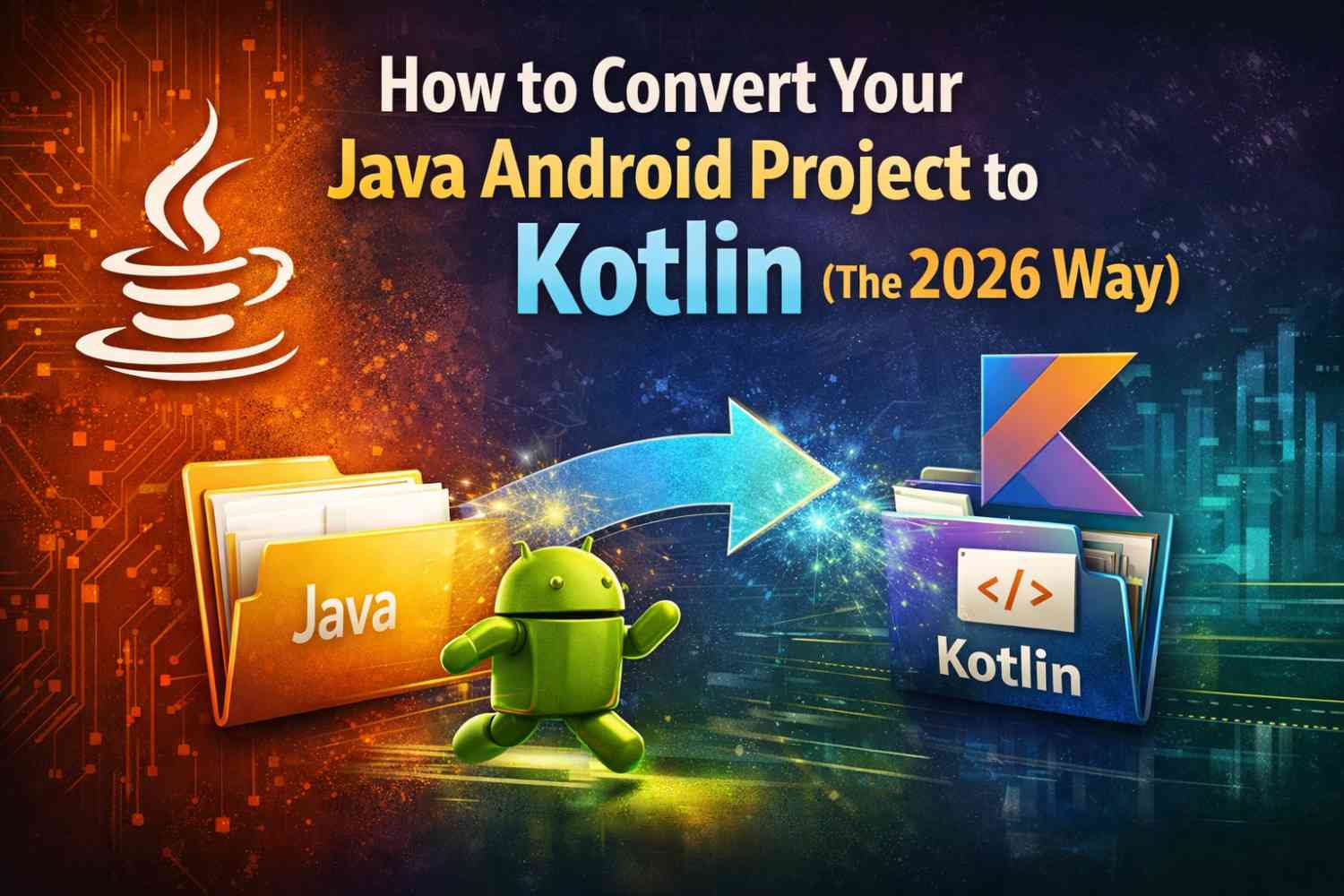
Introduction
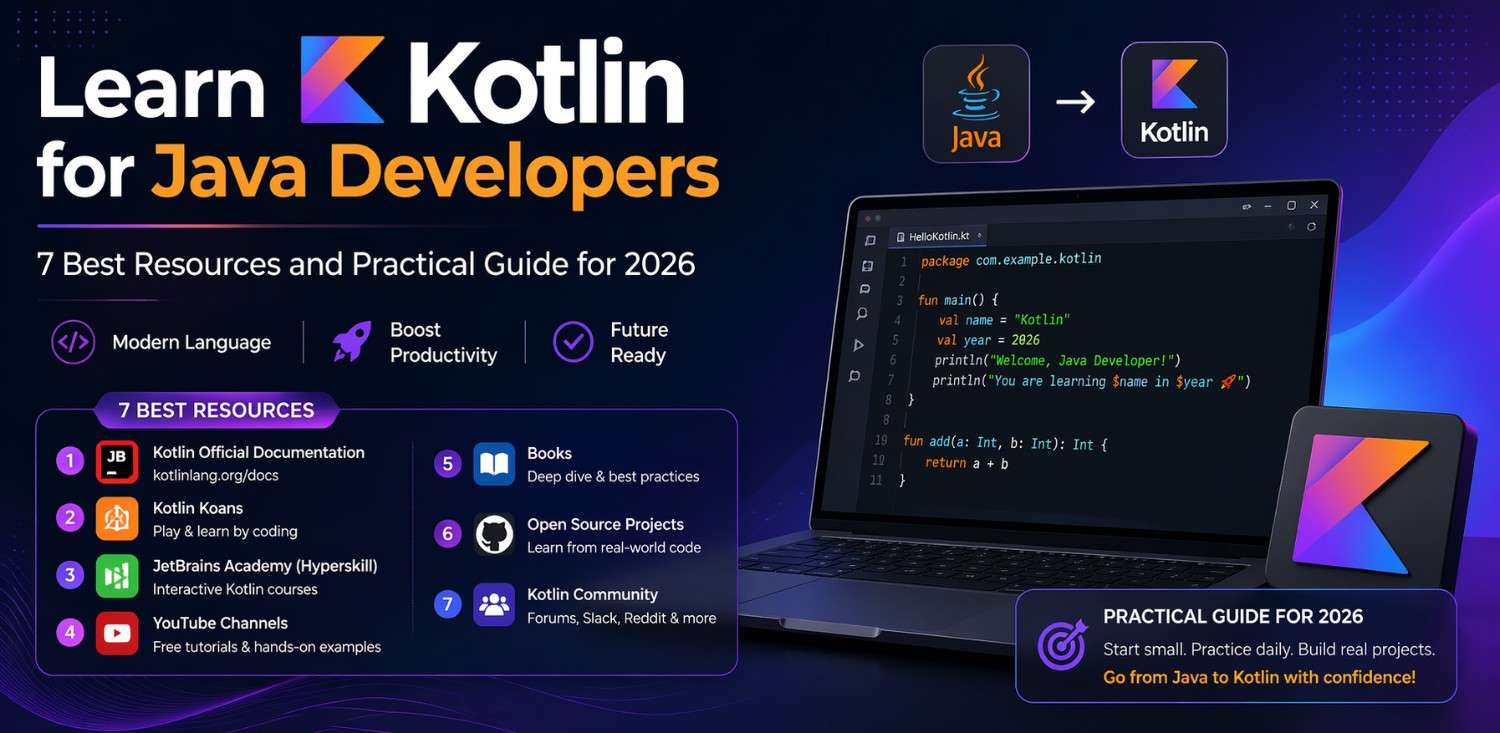
If you’ve been building Android apps with Java for a while, you’ve probably noticed that most new tutorials, documentation, and even Google’s own samples are now written in Kotlin. At some point, you’ll want to make the shift. And honestly, it’s not as scary as it looks.
Converting a Java Android project to Kotlin doesn’t mean rewriting everything from scratch overnight. You can do it gradually, file by file, and still have a working app throughout the process. That’s the best part about this migration — Android Studio supports both languages in the same project simultaneously.
This guide walks you through the entire process of converting a Java Android project to Kotlin, starting from the basics and going all the way to handling tricky parts like null safety and coroutines. Whether you’re new to Kotlin or just haven’t done a full migration before, this guide is for you.
Why Converting Your Java Android Project to Kotlin Makes Sense in 2026
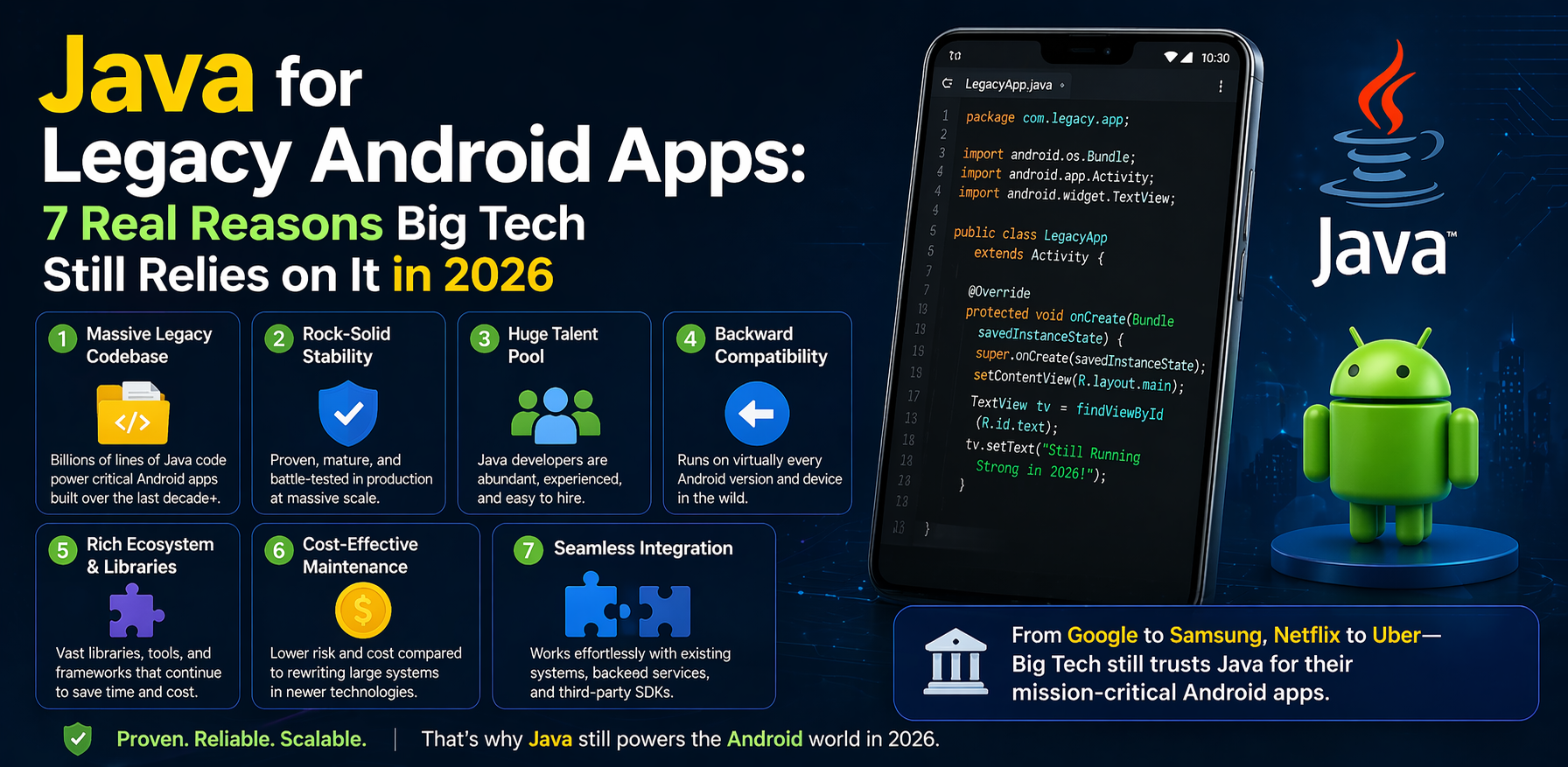
Let’s be honest — Java isn’t dead. Lots of apps still run perfectly fine on it. But Google officially declared Kotlin as the preferred language for Android development back in 2019, and by 2026, the gap has only widened.
When you convert your Java Android project to Kotlin, you get access to cleaner syntax, null safety built into the language, extension functions, and coroutines for async work. Things that would take 20 lines in Java can often be done in 5 lines of Kotlin.
Also, most new Android libraries are being written with Kotlin-first APIs. Jetpack Compose, for instance, doesn’t even make sense to use with Java. So if you plan to upgrade your app’s UI or use newer Jetpack components, starting a Java Android project to Kotlin migration is the right move.
What You Need Before Starting the Migration
Before you dive into converting your Java Android project to Kotlin, make sure a few things are in order.
Update Android Studio
You should be on the latest stable version of Android Studio. In 2026, that means you’ll have full Kotlin support, better auto-conversion tools, and improved code inspections. Open your IDE, go to Help > Check for Updates, and install the latest version if needed.
Back Up Your Project
This one sounds obvious but gets skipped more than you’d think. Create a Git commit or manually copy your project folder before starting. When converting a Java Android project to Kotlin, some auto-converted code will need manual fixes, and having a clean backup saves a lot of stress.
Add Kotlin to Your Gradle Files
If your project was created before Kotlin support was added by default, you’ll need to add the Kotlin plugin. Open your project-level build.gradle file and add:
plugins {
    id 'org.jetbrains.kotlin.android' version '1.9.x' apply false
}
Then in your app-level build.gradle:
plugins {
    id 'com.android.application'
    id 'org.jetbrains.kotlin.android'
}
Sync your project. If everything builds without errors, you’re ready to start converting your Java Android project to Kotlin.
Step-by-Step Process to Convert Java Android Project to Kotlin
Step 1 – Start With a Simple Activity File
Don’t start with your most complex class. Pick something simple — maybe your SplashActivity.java or a utility class with just a few methods. This gives you a feel for how the conversion works without drowning in complexity.
Open the file in Android Studio. Go to Code > Convert Java File to Kotlin File. The shortcut is Ctrl + Alt + Shift + K on Windows/Linux, or Option + Shift + Command + K on Mac.
Android Studio will automatically convert the Java file into a .kt file. The original .java file gets deleted and replaced. This is the fastest part of migrating your Java Android project to Kotlin.
Step 2 – Review the Auto-Converted Code
The auto-conversion tool is helpful but not perfect. After converting a file, scan through it. Common issues you’ll find include:
- Platform types: Variables that could be null will sometimes show up with a
!operator (likeString!), which means the tool isn’t sure about nullability. - Java-style getters/setters: These sometimes survive the conversion as method calls instead of Kotlin properties.
- Unnecessary null checks: The converted code might have extra
?.operators where they aren’t needed.
Fix these as you go. The more attention you give during the early files of your Java Android project to Kotlin migration, the smoother the rest will be.
Step 3 – Handle Null Safety Properly
Null safety is one of the biggest differences you’ll face when doing a Java Android project to Kotlin conversion. In Java, almost any variable can be null and the compiler doesn’t warn you until it crashes at runtime. Kotlin makes you be explicit.
If a variable can be null, you declare it with ?:
var userName: String? = null
If it should never be null, you declare it normally:
var userName: String = "Guest"
When you first migrate, it’s tempting to just put !! everywhere to make things compile. Try not to do that. The !! operator (non-null assertion) will still crash your app if the value is actually null. Take the time to figure out which variables genuinely can be null and handle them properly with ?. or let {}.
This careful approach to null safety is one of the main benefits of converting your Java Android project to Kotlin.
Step 4 – Replace Java Callbacks With Kotlin Coroutines
This is a bigger step and you don’t have to do it immediately. But when you see callback-heavy code in your project — things like nested AsyncTask calls, Handler.postDelayed, or custom listener interfaces — that’s a good opportunity to replace them with coroutines.
First, add the coroutines dependency to your app-level build.gradle:
implementation 'org.jetbrains.kotlinx:kotlinx-coroutines-android:1.7.x'
Then, instead of this Java-style pattern:
new AsyncTask<Void, Void, String>() {
    protected String doInBackground(Void... v) {
        return fetchData();
    }
    protected void onPostExecute(String result) {
        updateUI(result);
    }
}.execute();
You write this in Kotlin:
lifecycleScope.launch {
    val result = withContext(Dispatchers.IO) { fetchData() }
    updateUI(result)
}
Much cleaner. And this kind of cleanup is what makes a Java Android project to Kotlin migration worth the effort beyond just syntax differences.
Step 5 – Migrate Data Classes
In Java, a simple model class with fields, a constructor, getters, and setters can easily run 50–80 lines. In Kotlin, that same thing is one line:
data class User(val name: String, val email: String, val age: Int)
You get equals(), hashCode(), toString(), and copy() for free. When you find POJO (Plain Old Java Object) classes in your project, replacing them with Kotlin data classes is one of the quickest wins in the Java Android project to Kotlin migration process.
Common Mistakes to Avoid During Java Android Project to Kotlin Migration
Don’t Try to Convert Everything at Once
Projects with 30+ Java files should be migrated gradually. Pick 2–3 files per session. Trying to convert everything in one go usually leads to a broken build and a lot of frustration.
Don’t Ignore Build Errors After Conversion
Android Studio’s auto-convert is smart, but the moment you introduce a Kotlin file that interacts with a Java file, you might get interop issues. Check the build log after every conversion. Small errors caught early prevent big headaches later in your Java Android project to Kotlin journey.
Don’t Keep !! as a Long-Term Solution
As mentioned earlier, !! is a band-aid. It makes the code compile but doesn’t make it safe. Mark these with a // TODO: fix null safety comment and come back to them. Your goal with any Java Android project to Kotlin conversion should be cleaner, safer code — not just code that compiles.
Testing After Each Java Android Project to Kotlin Conversion Step
After converting a few files, run your test suite. If you don’t have unit tests, manually test the features connected to the files you just changed.
Because Java and Kotlin interop works so well, your app should function normally even when it’s half Java and half Kotlin. But edge cases do come up, especially around null handling and type casting.
Write or update tests as you go. It’s the only reliable way to confirm that the Java Android project to Kotlin migration isn’t breaking anything in production behavior.
For more on Kotlin testing basics, the official Kotlin documentation has good examples using JUnit.
Tools That Help With Java Android Project to Kotlin Migration
Beyond Android Studio’s built-in converter, a few other things make the process easier:
- Kotlin Lint Rules: Android Studio flags Kotlin-style issues automatically if you enable the right inspections under Analyze > Inspect Code.
- Detekt: A static analysis tool for Kotlin that helps identify code quality issues after migration. You can check out Detekt here.
- IntelliJ’s Structural Search: Useful for finding patterns like
!!overuse or leftover Java-style null checks across your codebase.
Using these tools consistently through your Java Android project to Kotlin process keeps code quality high, not just functional.
What Happens to Java Files You Haven’t Converted Yet
They keep working. That’s the beauty of the Kotlin-Java interop system. Your unconverted Java files still compile and run normally alongside your new Kotlin files. You can even call Kotlin functions from Java files and vice versa, with a few minor syntax differences.
This means there’s no hard deadline on your Java Android project to Kotlin migration. You can take your time, prioritize the files that matter most, and leave some Java files untouched if they’re stable and low priority.
Final Conclusion
Converting a Java Android project to Kotlin in 2026 is more manageable than it ever has been. The tools are better, the documentation is richer, and the community has gone through this migration thousands of times by now.
The key is patience. Don’t rush. Don’t ignore null safety issues. Don’t skip testing. And don’t let yourself get overwhelmed by the size of the task — one file at a time genuinely works.
Start with a simple activity, get comfortable with Kotlin’s style, and slowly work your way through your codebase. By the time you’ve converted a dozen files, you’ll start writing new code directly in Kotlin without even thinking about it. That’s the goal.